

What are passkeys?
Learn how passkeys replace passwords with phishing-resistant sign-in, saved from websites via Android Credential Manager.
Passkeys are a newer, safer way to sign in to websites and apps without typing a password. Instead of remembering a secret, your device proves who you are with a cryptographic key that never leaves your control. GBpass can store passkeys and keep them in sync, so signing in feels effortless and stays secure. This article explains what passkeys are and how they work with GBpass.
A password replacement, not another password
A passkey is built on the WebAuthn standard, the same technology used across the web for phishing-resistant sign-in. Rather than a secret you type into a login form, a passkey is a pair of cryptographic keys. The website keeps a public key, and your device keeps the matching private key. When you sign in, your device quietly proves it holds the private key without ever revealing it.
Because there is nothing to type and nothing to remember, there is nothing for an attacker to steal or trick out of you.
- phishingPhishing-resistant. A passkey only works on the exact website it was created for, so a fake login page cannot capture it.
- keyNothing to type: there is no password to reuse, forget, or leak in a data breach.
- fingerprintConfirmed by you, using your device's own screen unlock, such as your fingerprint.
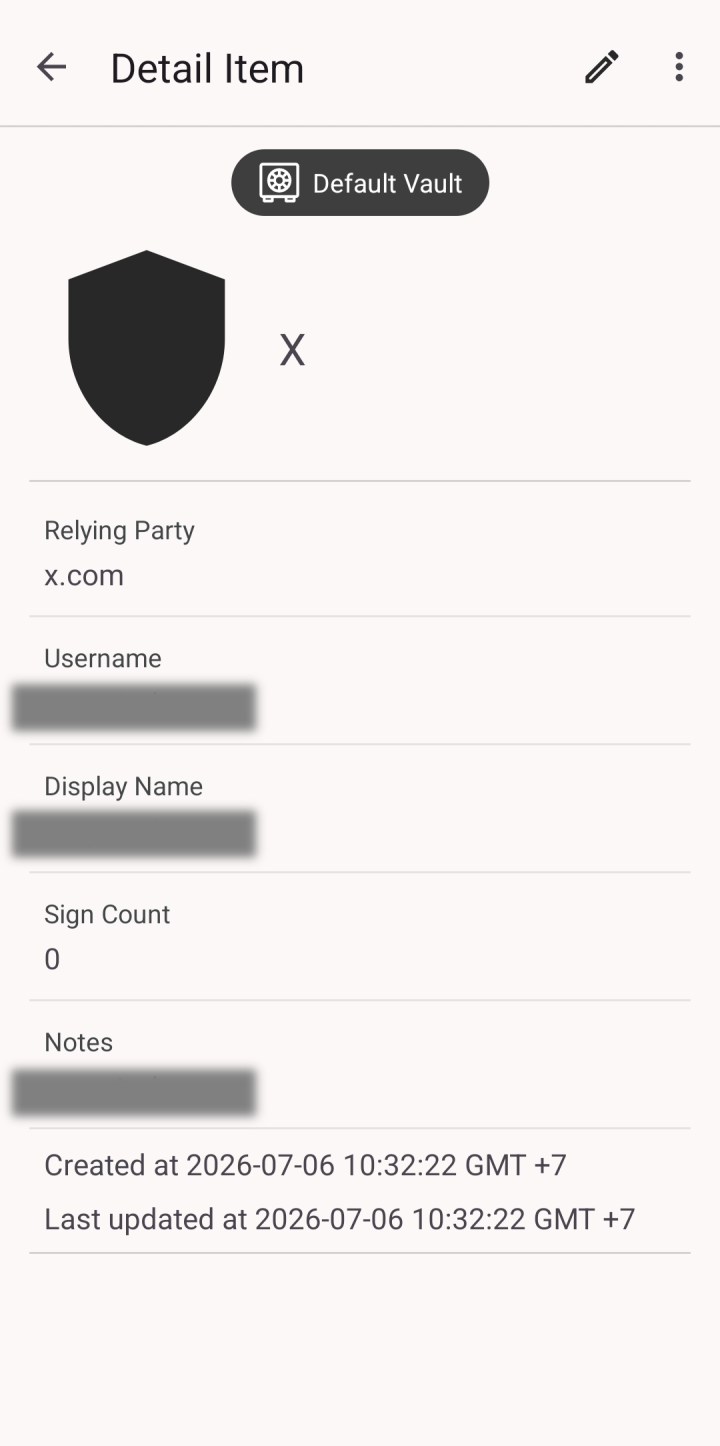
How passkeys work in GBpass
GBpass can store passkeys for supported websites right alongside your other items. When you save a passkey, it becomes part of your vault and is protected by the same encryption. Your passkeys also sync securely across your devices, so a passkey you create on one Android phone is ready to use on another.
Each saved passkey keeps a few useful details you can review at any time:
- linkThe website it belongs to (also called the relying party).
- account_balanceThe username the passkey signs in as.
- checklistThe sign-in count, so you can see how often it has been used.
What you need to save passkeys
Passkeys are saved from a website through Android's built-in Credential Manager, which offers GBpass as a place to store them. This requires Android 14 or newer. When you create a passkey on a supported site, Android asks where to save it, and you can choose GBpass.
warning You cannot create a passkey manually inside GBpass. Passkeys are always generated by the website and handed to GBpass to store. For the same security reasons, passkeys cannot be shared with other people.
Next steps
Ready to try one? Learn how to save and use a passkey with GBpass, and see the details of one you have already stored.
Related articles
Still need a hand?
Browse the Help Center FAQ or contact our support team.