

Set up autofill
Turn on the GBpass autofill service on Android 8 and above, with an accessibility fallback for older browsers.
Autofill is what turns GBpass from a place you store logins into a tool that actually types them for you. Once it is switched on, GBpass can fill your saved usernames and passwords straight into other apps and browsers on your phone, so you never have to copy and paste again. This guide walks you through turning it on. When you are done, head to Use autofill to see it in action.
What autofill does
When you land on a login screen in another app or a website, GBpass recognizes the username and password fields and offers to fill in your matching saved Items. GBpass supports two ways to do this, and you only need one:
- verifiedStandard autofill service: the recommended option, built on Android's own autofill framework. Works on Android 8.0 and above.
- extensionAccessibility autofill: a fallback for browsers or older devices that do not support the standard service.
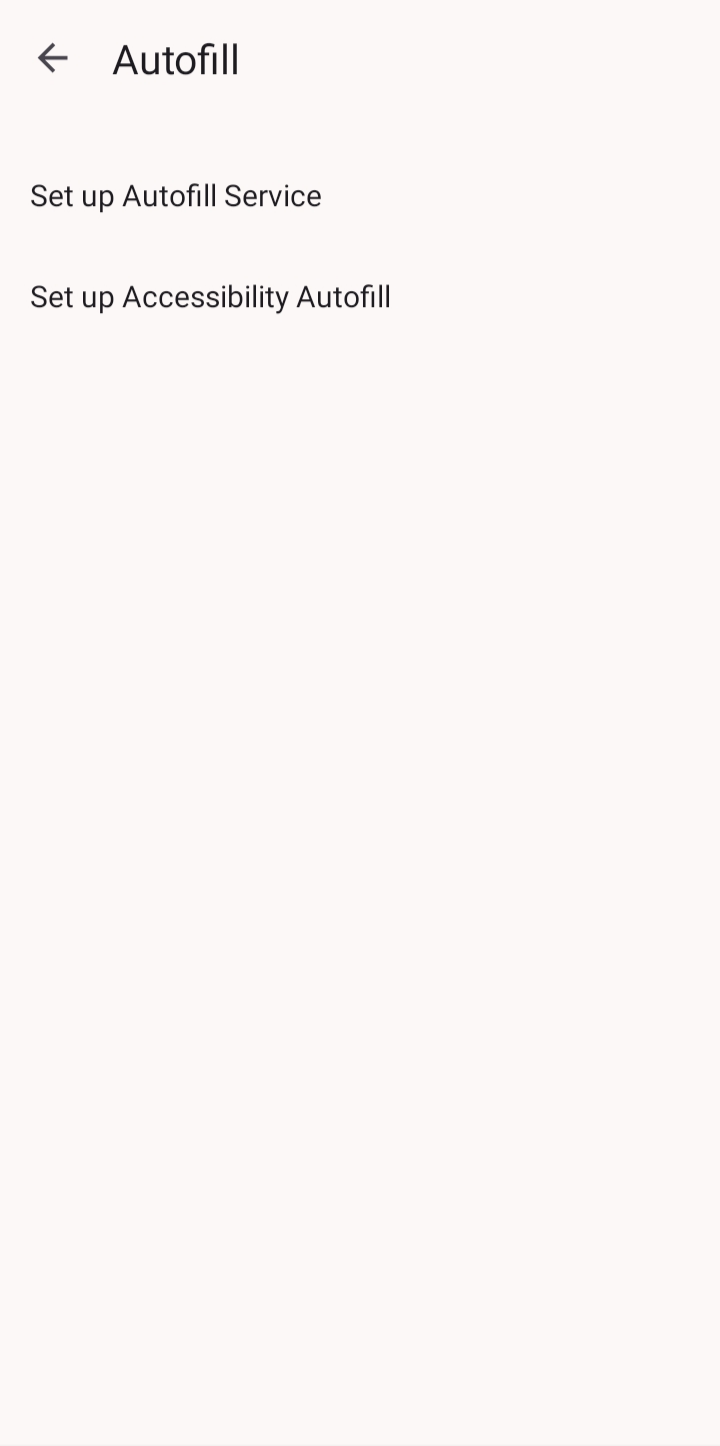
1. Set up the standard autofill service
This is the option we recommend for most people. It uses the standard Android Autofill Framework, so it is fast, reliable, and available on Android 8.0 and above.
- arrow_forwardOpen Settings, then tap Autofill Settings.
- arrow_forwardTap Set up Autofill Service. Android's autofill picker opens.
- arrow_forwardChoose GBpass from the list and confirm.
2. Set up accessibility autofill (fallback)
If a browser or an older device does not support the standard service, you can use the accessibility fallback instead. Only turn this on if the standard service is not offering to fill where you need it.
- arrow_forwardOpen Settings, then tap Autofill Settings.
- arrow_forwardTap Set up Accessibility Autofill and follow the prompts to grant the permission.
shield_lock Your privacy is protected. When accessibility autofill is on, GBpass only detects login fields so it knows where to offer a fill. It never collects, reads, or shares the rest of your screen content.
Which one should I choose?
Start with the standard autofill service. It is the smoothest experience and covers most apps. If you run into a browser or an older device where it does not appear, add the accessibility fallback for those cases. You do not have to pick one forever; you can adjust either option from Autofill Settings at any time.
With autofill turned on, the next step is putting it to work. Continue to Use autofill to learn how GBpass fills logins as you browse and sign in.
Still need a hand?
Browse the Help Center FAQ or contact our support team.