

View, edit & delete items
Open an item to view it, then edit, rename, move, archive, or delete it to the Trash and restore it later.
Once you have saved logins, cards, and notes in GBpass, you will want to look them up, keep them current, and clear out the ones you no longer need. Every item lives in your Vault, and each one opens into a detail view where you can read fields, copy them, or reach every action through a single menu. This guide walks through viewing, editing, and deleting items.
1. Open an item to view its details
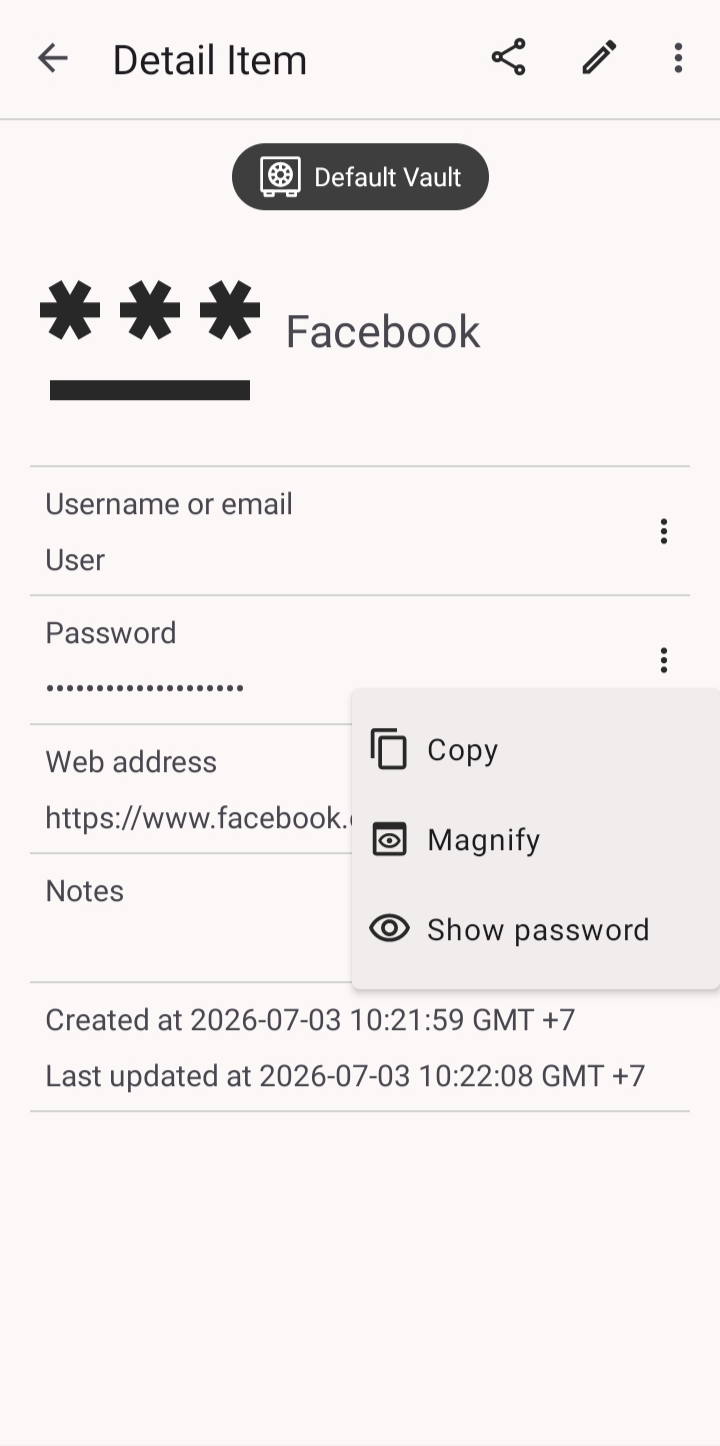
Tap any item to open its detail view. Sensitive fields such as passwords and card numbers stay hidden behind a reveal control, so nothing private shows on screen by accident.
- visibilityTap the eye icon next to a hidden field to reveal it, and tap again to hide it.
- checkTap a field to copy its value with one tap. That helps when you need to paste a password or number somewhere else.
2. The item menu
Every item's actions live in one place. Open it from the More option on an item's row in the list, or from the toolbar inside the detail view. The menu offers:
- note_altEdit: change any of the item's fields.
- titleRename: give the item a clearer name.
- swap_horizMove item to: send it to another vault. See Organize your vault.
- starAdd to starred: keep it close at hand. See Starred, archive & trash.
- grid_viewArchive: tuck away items you rarely use without deleting them.
- shareShare: hand access to someone you trust. See Share items.
- groupManage access: review who can see a shared item. See Manage access.
- closeDelete: move the item to the Trash.
3. Edit an item
To update the details of an item, open the item menu and tap Edit. You can change any field: the username, password, notes, or anything else the item holds. When you are finished, tap Save to apply your changes.
4. Delete an item
When you no longer need an item, open the item menu and tap Delete. GBpass asks you to confirm with Delete this item? before anything is removed.
Deleting is a soft delete: the item moves to the Trash (Deleted items) rather than disappearing at once, so a mistaken tap is easy to undo. You can restore it later from the Trash (see Starred, archive & trash).
warning If you only want to hide an item you might still need, choose Archive instead of Delete. Archived items stay in your vault and can be brought back at any time.
Related articles
Still need a hand?
Browse the Help Center FAQ or contact our support team.