

Star, Archive & Trash
Star the items you use most, archive the ones you don't, and restore anything you delete from the Trash.
As your Vault grows, GBpass gives you three simple ways to keep it tidy: star the items you reach for every day, archive the ones you rarely touch, and send anything you no longer need to Trash without losing it for good. This guide walks through each one and shows you how to bring items back whenever you want.
Star your favorites
Starring marks the logins and other items you use most so they are always a tap away. Open any item, then tap Add to starred. To remove the mark later, open the item again and tap Remove Star.
Every starred item collects on the Starred tab, giving you a short, personal shortlist instead of scrolling your whole Vault. Starring never moves or hides an item, so it still appears in your normal lists and in search too.
Archive items you rarely use
Archiving is for items you want to keep but do not need cluttering your everyday view: an old account you might return to, or a login you only use once a year. Archiving hides the item without deleting anything.
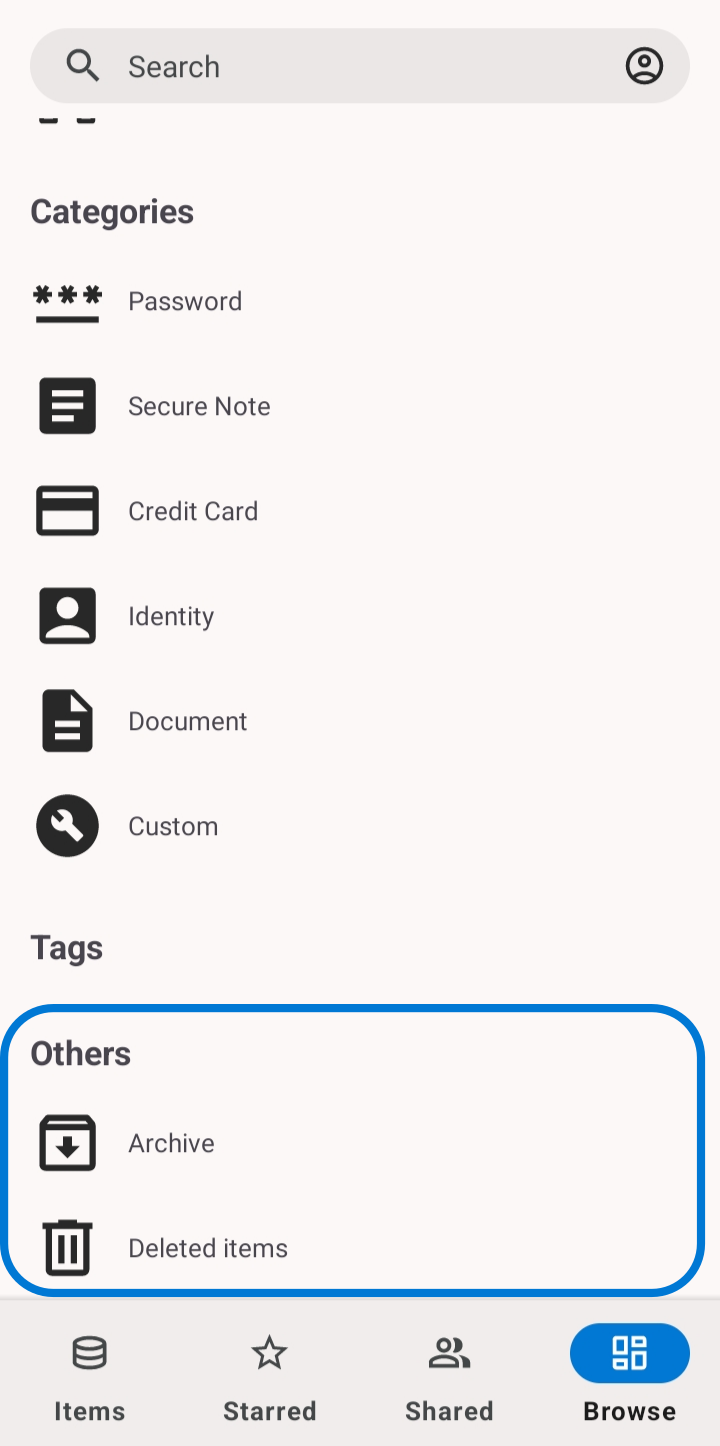
- grid_viewArchived items move to Browse → Others → Archive.
- visibility_offThey no longer appear in your normal lists or in search, so your main view stays focused.
- swap_horizTo bring one back, open it from the Archive and tap Unarchive.
Trash: a safety net for deletes
When you delete an item, GBpass does not remove it right away. Instead it performs a soft delete and moves the item to Browse → Others → Deleted items. That gives you a chance to change your mind.
To recover something, open Deleted items, select the item, and tap Restore. It returns to your Vault exactly as it was. Like archived items, deleted items stay out of your normal lists and search until you restore them. For the full delete and restore walkthrough, see Edit & Delete Items.
warning Archive and Trash are different: archiving keeps an item long-term but out of the way, while Trash holds items you intend to remove. If you are not sure you will ever need something again, archive it rather than delete it.
Find the Others section
Both Archive and Deleted items live under the Others section of Browse. Tap Browse, scroll to Others, and choose the list you need.
With starring, archiving, and Trash working together, you can keep the accounts you use daily front and center while safely tucking away everything else. To take your cleanup further, see Organize Your Vault.
Related articles
Still need a hand?
Browse the Help Center FAQ or contact our support team.