

Quick Settings tile & clipboard
Copy passwords from the Quick Settings tile, rely on the 30-second clipboard auto-clear, and use Credential Manager on Android 14+.
GBpass includes a few small conveniences that make everyday copying faster and safer. You can add a Quick Settings tile to grab a password in a couple of taps, rely on automatic clipboard clearing so a copied password never lingers, and on newer devices GBpass plugs into Android's own Credential Manager for smoother sign-ins. This article walks through each one.
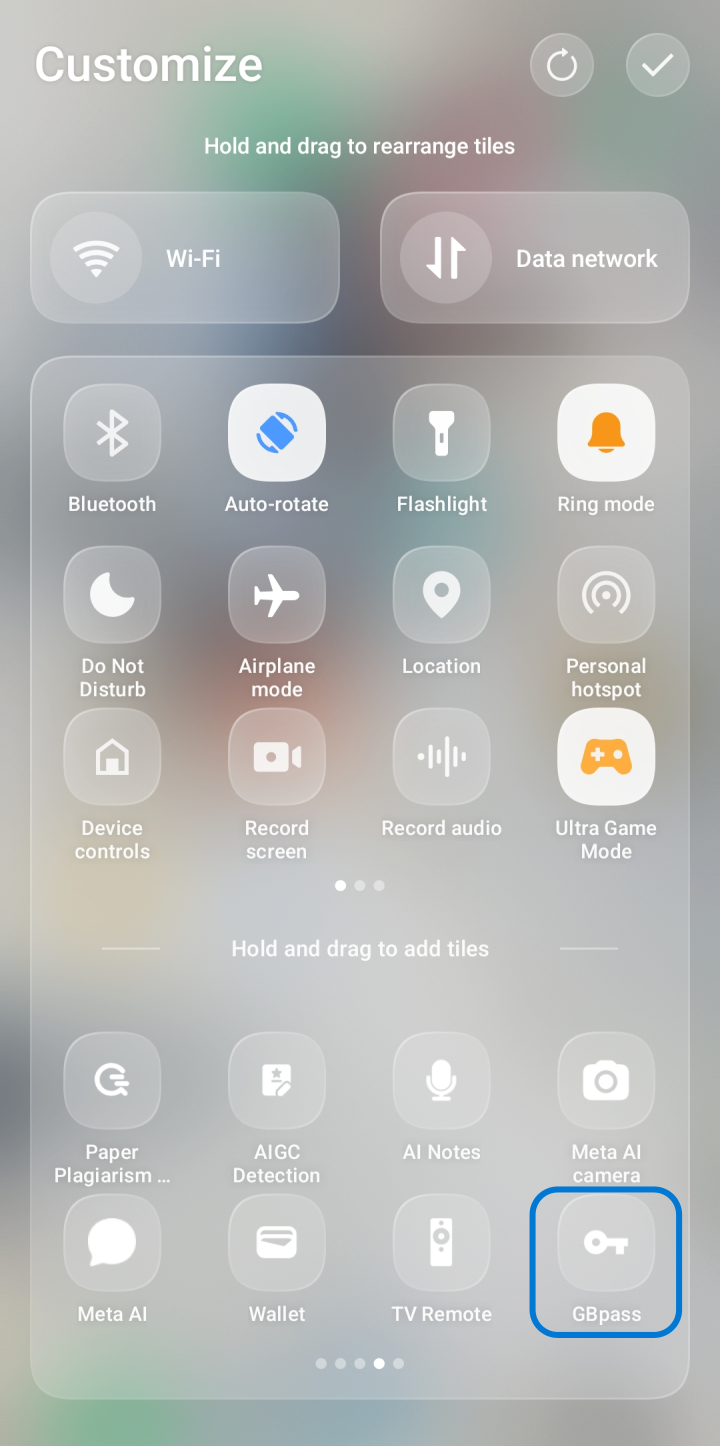
1. Add the GBpass Quick Settings tile
Android's Quick Settings panel is the shade you pull down from the top of the screen. GBpass provides a tile there so you can copy a password without first opening the app.
- swap_horizSwipe down twice from the top of the screen to fully open Quick Settings, then tap the edit (pencil) button.
- grid_viewFind the GBpass tile in the list of available tiles and drag it up into your active tiles.
- checkSave your changes. The tile now appears in your Quick Settings shade.
To use it, pull down the shade, tap the GBpass tile, and pick the item you want. The password is copied straight to your clipboard, ready to paste.
warning You may be asked to unlock GBpass with your Master Password or biometrics before the tile reveals your items. See Unlock and Auto Lock for how unlocking works.
2. Clipboard auto-clear
Whenever you copy a password from GBpass, it sits on your device clipboard so you can paste it. Leaving a password there is a risk, because other apps can read the clipboard. To protect you, GBpass automatically clears your clipboard 30 seconds after you copy a password, so the value isn't left lying around.
Because clearing happens quickly, paste the password into the app or field you need soon after copying. If the 30 seconds pass before you paste, just copy it again.
3. Credential Manager on Android 14 and newer
On Android 14 and later, GBpass works with Android's built-in Credential Manager. This is the system service that offers your saved credentials directly in apps and browsers, and it's also what powers passkeys.
- passkeyCredential Manager handles passkey sign-ins. To learn more, read Passkeys overview.
- verified_userIt also supports modern credential filling, so GBpass can offer the right login at the moment you need it.
If your device runs an older version of Android, these Credential Manager features simply aren't available, but the Quick Settings tile and clipboard auto-clear still work.
Related articles
Still need a hand?
Browse the Help Center FAQ or contact our support team.