

Share an item
Share with named people by email or generate a secure link with an expiry and a maximum number of views.
Sometimes you need to hand a password or note to a coworker, a family member, or a service provider. GBpass lets you share any item securely, either with specific people or through a one-time link that carries its own encryption key. This guide walks you through both options and the settings that keep the shared data safe.
1. Open the Share sheet
Open the item you want to share, tap its menu, and choose Share. The Share sheet appears with an Available to setting at the top. There are exactly two audiences to pick from.
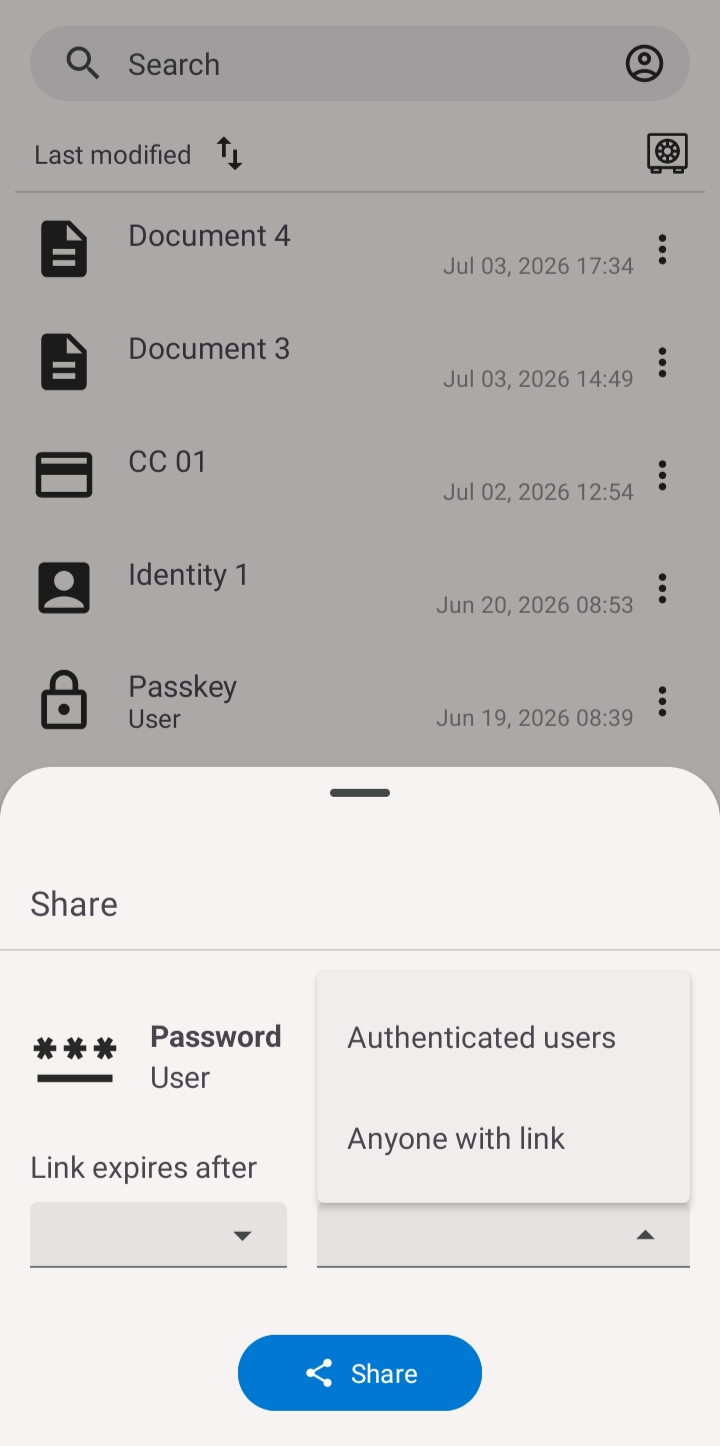
2. Share with authenticated users
Choose Authenticated users to share with specific people. Add one or more email addresses of the people you want to reach. Each recipient will find the item waiting for them in their Shared tab the next time they open GBpass.
- groupAdd as many email addresses as you need so several people can receive the same item.
- mailRecipients access the item inside their own account, so nothing travels outside GBpass.
3. Share with anyone who has the link
Choose Anyone with link when the recipient may not use GBpass. The app creates a secure link that you can pass along however you like. Before you send it, tighten the limits:
- visibilitySet the maximum number of views, anywhere from 1 to 100.
- boltOptionally turn on view-once so the link stops working after a single open.
Once the link is created, use Copy Link to place it on your clipboard or Share Link to send it through another app.
4. Set when the share expires
Every share can be given a time limit so access does not linger. Pick an expiry that matches how long the recipient actually needs the item:
- check1 hour or 6 hours for a quick, same-day handoff.
- check1 day, 7 days, or 14 days for short-term access.
- check30 days when the recipient needs more time.
5. How share links stay secure
A GBpass share link is built so that only someone holding the full link can open the item. The key that decrypts the data lives inside the link itself and is never sent to our servers, which means we cannot read your shared item even if we wanted to. Learn more in our security overview.
What you can't share
warning Passkeys can't be shared. Everything else can. Secure sharing is included on every plan.
Review or stop a share
After you share something, you stay in control. You can see who has access and revoke it at any time. See manage access for the full walkthrough.
Related articles
Still need a hand?
Browse the Help Center FAQ or contact our support team.