

Find your Secret Key & sign-in details
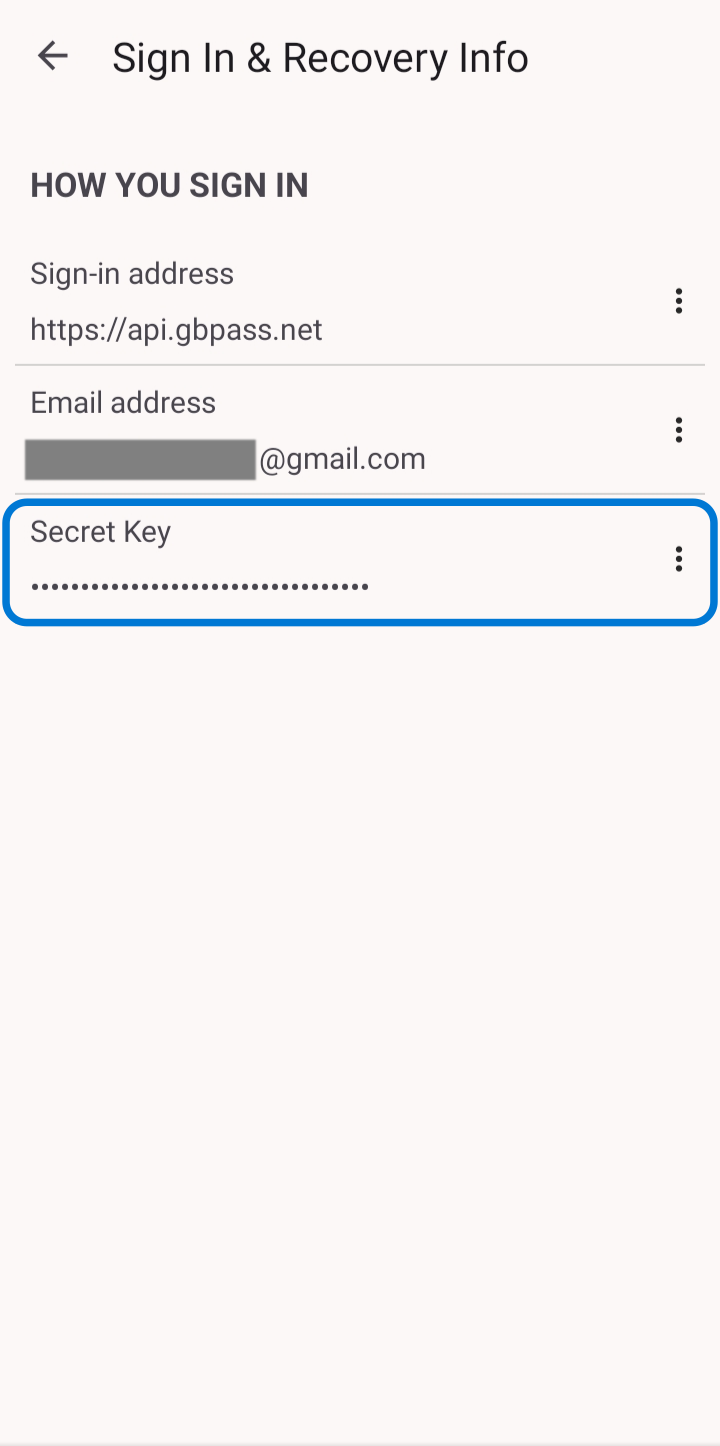
Reveal your Secret Key on the Sign In & Recovery Info screen, along with your sign-in address and the email address you use to sign in.
The Sign In & Recovery Info screen is where GBpass keeps everything you need to sign in on a new device: your sign-in address, the email address you sign in with, and your Secret Key. This guide shows you where the screen lives and what each detail is for.
What is on the Sign In & Recovery Info screen
Open Settings › Account › Sign In & Recovery Info and you will see three details grouped under How you sign in:
- dnsSign-in address: the GBpass server your app connects to, shown here for reference.
- mailEmail address: the email you sign in with. GBpass has no separate username, so this email is your username.
- keySecret Key: a private 34-character code used together with your Master Password to sign in on a new device.
Reveal your Secret Key
Your Secret Key stays hidden until you tap it. This is the code you will reach for when you set up GBpass on a new phone.
- arrow_forwardOpen Settings, then tap Account.
- arrow_forwardTap Sign In & Recovery Info.
- visibilityTap your Secret Key to copy the full 34-character code.
warning Keep your Secret Key private and never share it. The same code is saved in your Recovery Kit, so store that file somewhere safe as a backup.
Your email is your username
GBpass does not use a separate username. You sign in with your email address. The Sign In & Recovery Info screen shows the exact email on your account, so you always know which address to use.
When you set up GBpass on a new device, you enter three things in this order:
- mailYour email address (your username).
- keyYour Secret Key.
- lockYour Master Password.
Related articles
Still need a hand?
Browse the Help Center FAQ or contact our support team.