

How sync works
Your items are encrypted on your device before they sync, and any offline changes queue up until you reconnect.
GBpass keeps your vault up to date across every device you sign in on, without you having to lift a finger. This guide explains how syncing works, what happens when you go offline, and how GBpass handles the rare case where the same item changes in two places at once.
Your data is encrypted before it leaves your device
Every item in your vault is encrypted on your device before anything is uploaded. This is called end-to-end encryption: the data that travels to and from GBpass is already scrambled, and only your Master Password and Secret Key can unlock it. That means no one but you, not even GBpass, can read your logins, notes, or attachments.
encrypted Because encryption happens on your device, syncing never exposes your secrets to the network. Learn more in Security overview.
The first sync after you sign in
When you sign in on a device, GBpass fetches your encrypted vault and decrypts it locally. You'll see a brief Syncing your vault... screen while this happens. Once it finishes, your Items appear and you're ready to go.
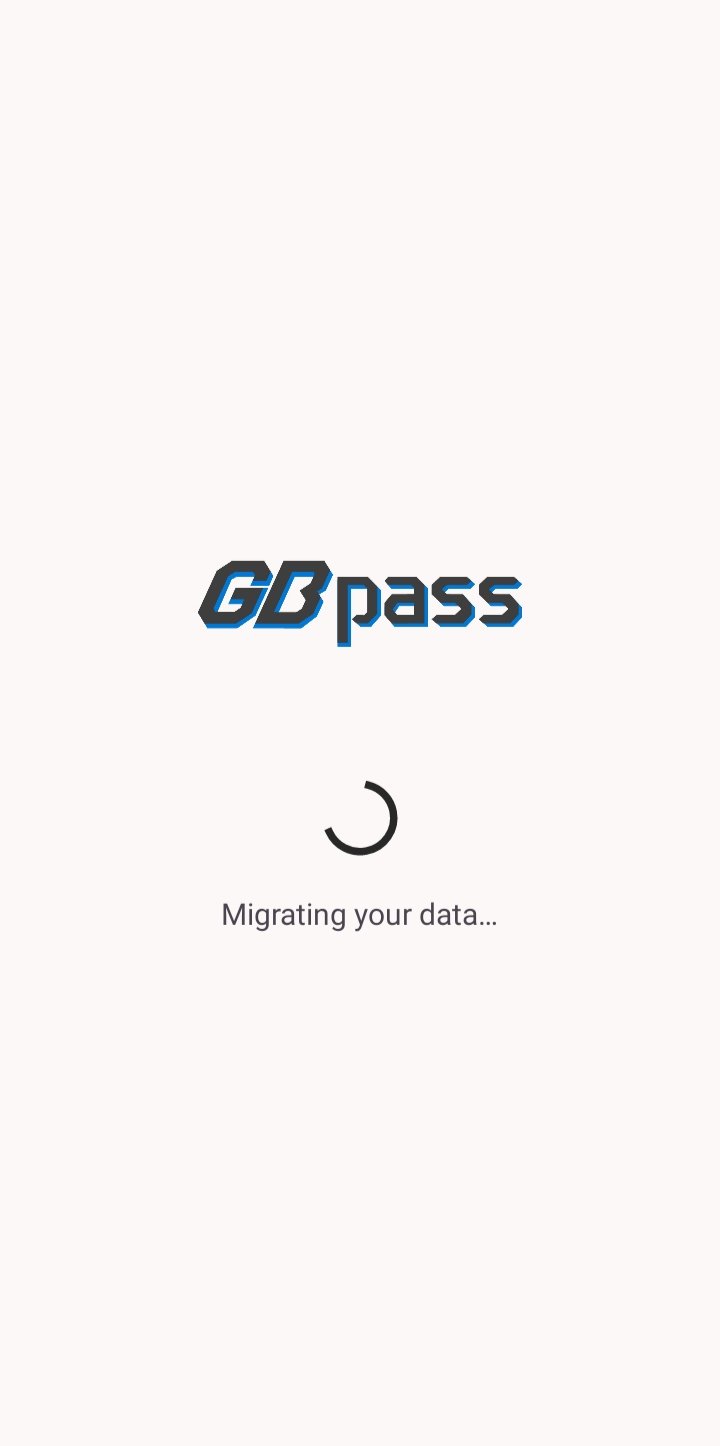
After that first sync, you won't see this screen again on the same device. From then on, changes move quietly in the background.
Ongoing background sync
Once your vault is loaded, GBpass keeps it current automatically. There's no sync button to press and nothing to schedule.
- boltAdd, edit, or delete an item and the change is uploaded in the background.
- swap_horizSign in on another device and your latest vault is waiting for you.
- encryptedEvery update stays encrypted end to end the entire time.
Working offline
No connection? No problem. You can keep using your vault as usual. Any changes you make while offline are queued on your device, and GBpass syncs them automatically the moment you're back online. You don't have to remember to do anything.
How conflicts are handled
Occasionally the same item gets changed in two places before they've had a chance to sync, for example on two devices that were both offline. When that happens, GBpass keeps the newest version of the item and lets you know so nothing changes behind your back.
warning To keep conflicts to a minimum, let a device finish syncing before you switch to another one, especially after making a lot of edits.
If sync ever seems stuck, make sure you have a working connection and that you're signed in, then reopen the app. Still not syncing? Check the Help Center FAQ or reach out through Contact.
Still need a hand?
Browse the Help Center FAQ or contact our support team.