

Organize with vaults, categories & tags
Use Browse, multiple vaults, categories, and tags to keep large collections of items easy to find.
As your vault fills up, a little structure goes a long way. GBpass gives you three ways to keep everything findable: Vaults for big-picture separation, Categories for item types, and Tags for your own custom labels. There are no folders in GBpass. These three tools do the same job, and they work together.
Start from the Browse tab
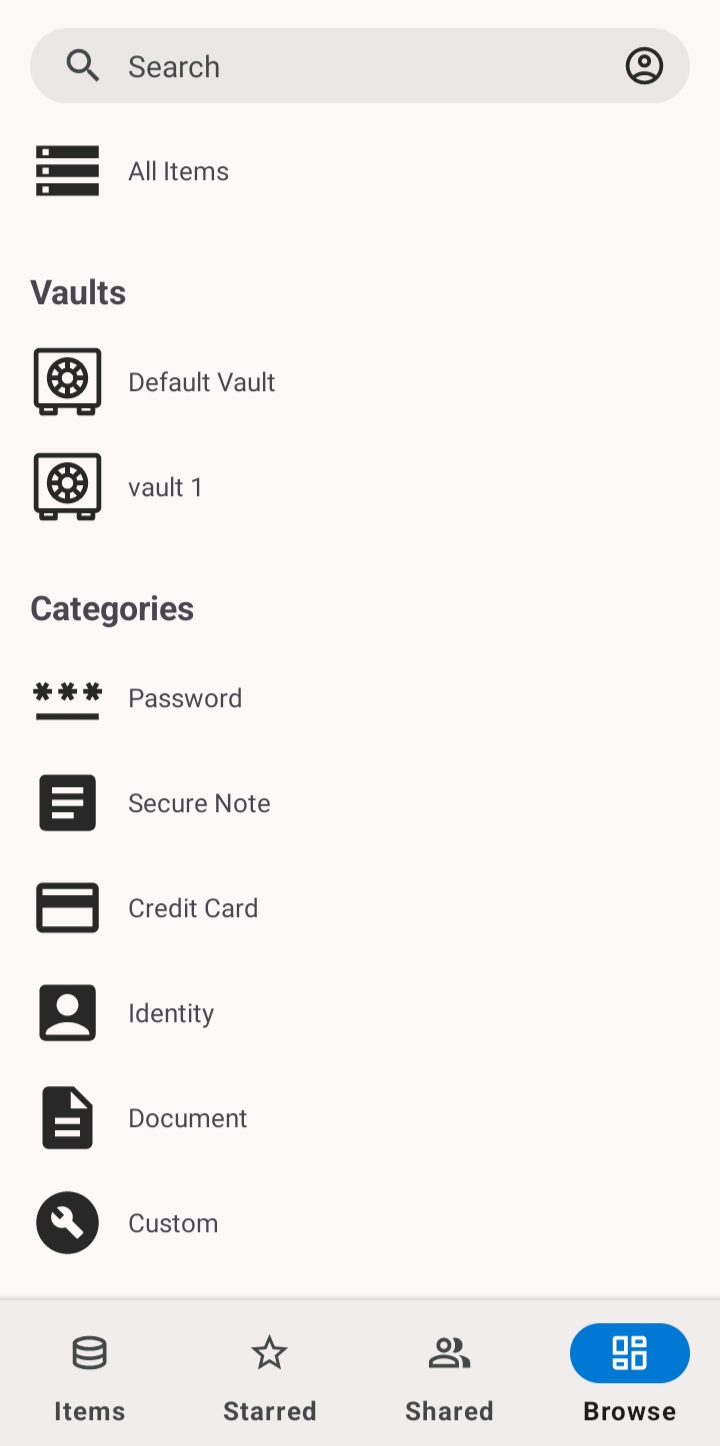
The Browse tab is your organizing hub. From here you can jump into any slice of your data instead of scrolling through one long list.
- grid_viewAll Items: everything across your vaults in one place.
- lockVaults: your top-level containers, listed individually.
- checklistCategories: Password, Secure Note, Credit Card, Identity, Document, and Custom.
- linkTags: your own labels for grouping items.
- dnsOthers: Archive and Deleted items.
Use vaults to separate big areas
Vaults are the top-level container and the broadest way to split your data, such as keeping personal logins apart from work or family entries. Every account starts with a default vault, and you can add more as you need them.
To create a new vault, open Settings, tap Manage vaults, then choose New vault and give it a name.
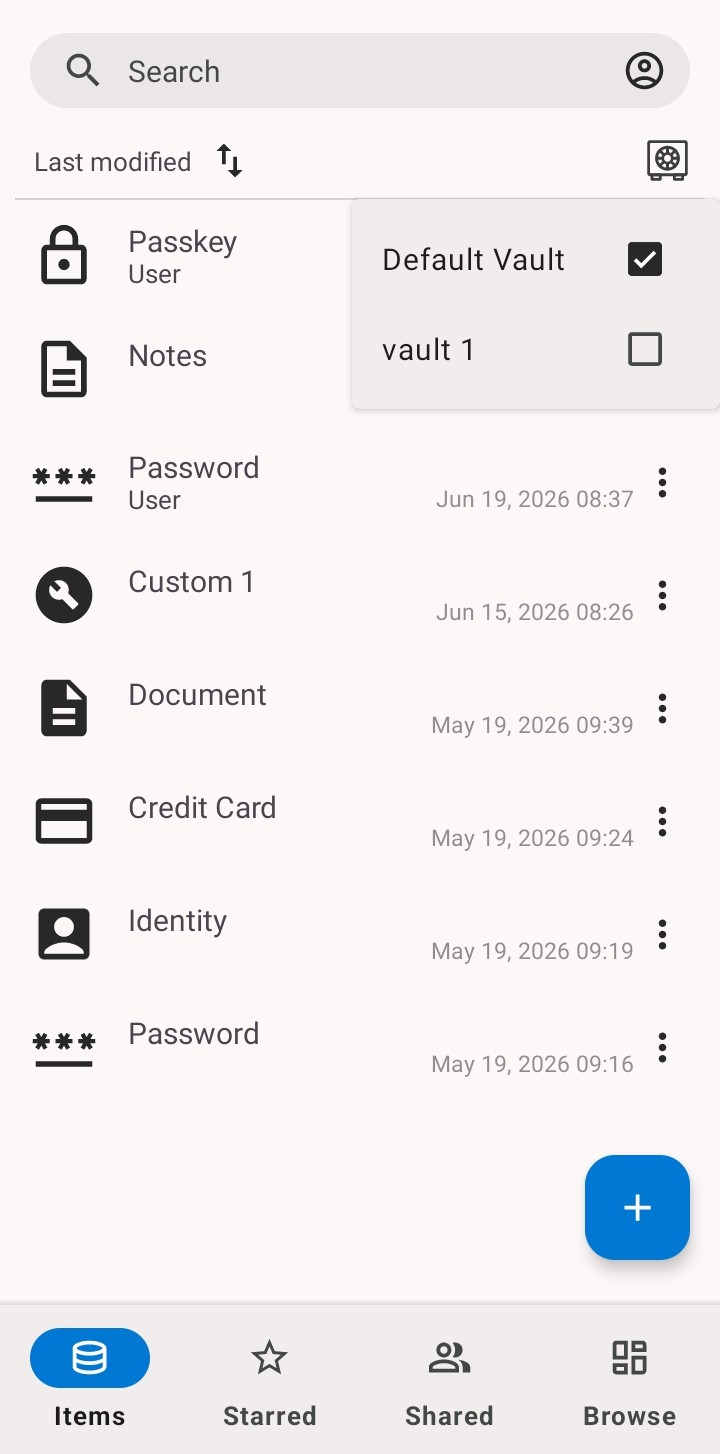
Switch between vaults
On the Items tab, tap the vault icon at the top and pick the vault you want to view. GBpass then shows only the items stored in that vault, so you can focus on one area at a time.
Move an item to another vault
If an item ends up in the wrong place, open it and use Move item to to send it to a different vault. This is handy when you set up a new vault and want to reorganize existing entries into it.
warning The default vault can't be deleted, and a vault that still holds items can't be deleted either. Move or delete everything inside a vault first, then remove the empty vault from Manage vaults.
Group anything with tags
Tags are your own labels that you attach to items. Think travel, finance, or shared with family. Unlike vaults and categories, a tag can pull together items that live in different vaults and belong to different categories, so it's the most flexible way to organize.
Add a tag while editing an item, then open that tag from the Browse tab to see everything grouped under it. Combine vaults for broad separation, categories for item type, and tags for the cross-cutting groups that matter to you.
Once things are tidy, learn how to search in your vault to jump straight to any item, or use Starred, Archive & Trash to keep frequent items close and clear out the rest.
Related articles
Still need a hand?
Browse the Help Center FAQ or contact our support team.