Guest mode & upgrading
Try GBpass with everything stored locally, then upgrade to an account for encrypted cloud backup and sync.
Guest mode is the fastest way to try GBpass. You can open the app and start saving logins right away, with no account and no sign-up. It is a great way to explore the vault, the password generator, and autofill before you commit. When you are ready for cloud backup and sync, you can upgrade at any time and keep everything you have already saved.
What guest mode is
In guest mode, every item you create is stored only on this device. There is no Master Password, no Secret Key, and no account to sign in to. Because nothing leaves your phone, there is also no cloud backup and no sync to other devices.
- smartphoneAll your data lives on this one device only.
- cloud_offNo encrypted cloud backup and no sync between devices.
- boltNo sign-up required, so you can start in seconds.
warning Because guest data is not backed up, it is only as safe as your device. If you lose, reset, or uninstall the app, that data cannot be recovered. Upgrade to an account before you rely on GBpass for anything important.
Limits of guest mode
Guest mode covers the essentials, but a couple of features are reserved for account holders:
- draftFile attachments are capped at 10 MB per file in guest mode.
- shareYou cannot share items with anyone until you create an account.
Upgrading to an account
Upgrading unlocks encrypted cloud backup and sync, higher attachment limits, and item sharing. The best part is that you do not start over: when you create your account, all of your existing guest data moves into it automatically.
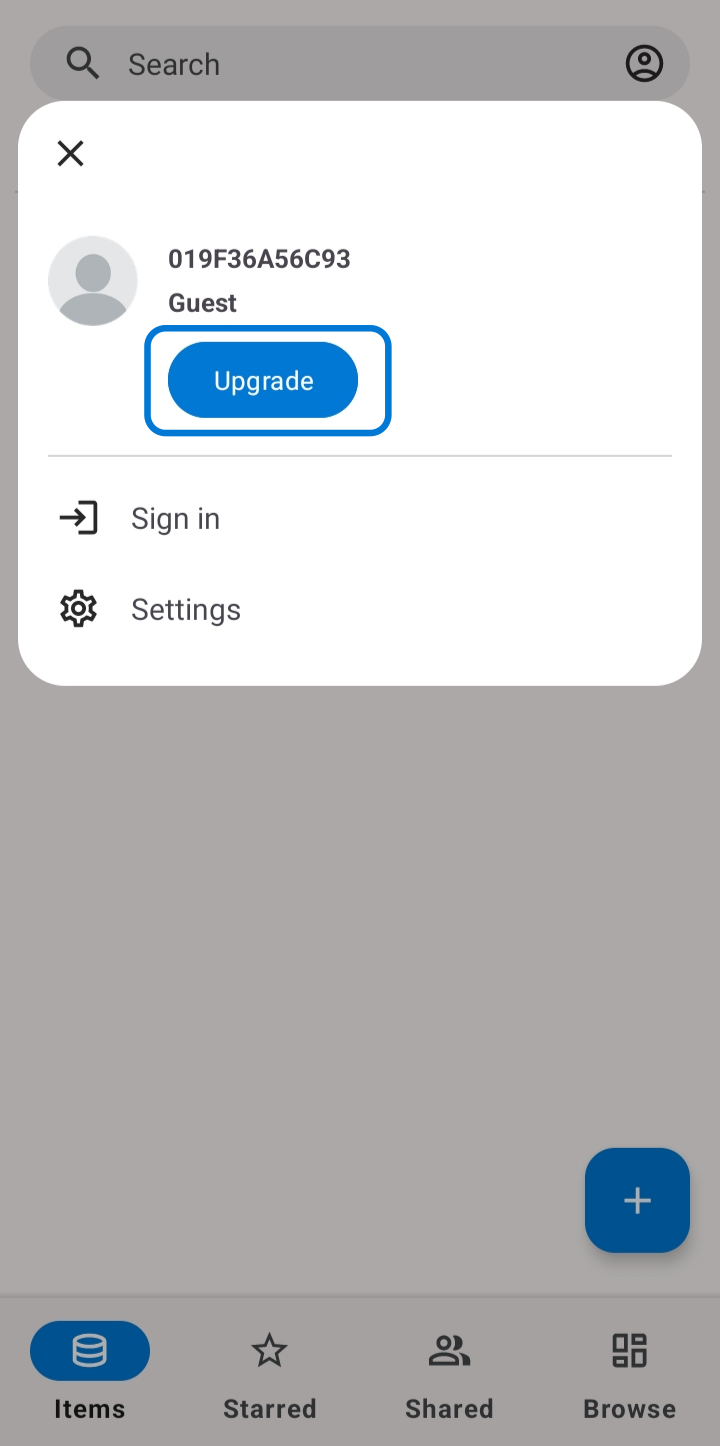
How to upgrade your guest vault
Follow these steps to move from guest mode to a full GBpass account.
1. Open the upgrade prompt. Tap the prompt to create an account, then follow the on-screen steps.
2. Create your account. Set a Master Password and save your Secret Key and Recovery Kit. See Create your account for the full walkthrough.
3. Let your data move over. Your existing guest items are carried into the new account automatically, so nothing is lost.
After upgrading, learn how sync works so your vault stays up to date everywhere you use GBpass.
Related articles
Still need a hand?
Browse the Help Center FAQ or contact our support team.