

Generate a strong password
Build a random password or numeric PIN with adjustable length and character options right from any password field.
The safest passwords are long, random, and different for every account. GBpass has a built-in generator that creates one for you in a tap, so you never have to invent (or reuse) a password again. Here is how to open it and dial in exactly the password you want.
Where to find password generator
The generator is not a separate tool or tab. It opens directly from a Password field while you are adding or editing an item. When you add a login (or edit an existing one), tap the generate action below the password field and the generator sheet slides up.
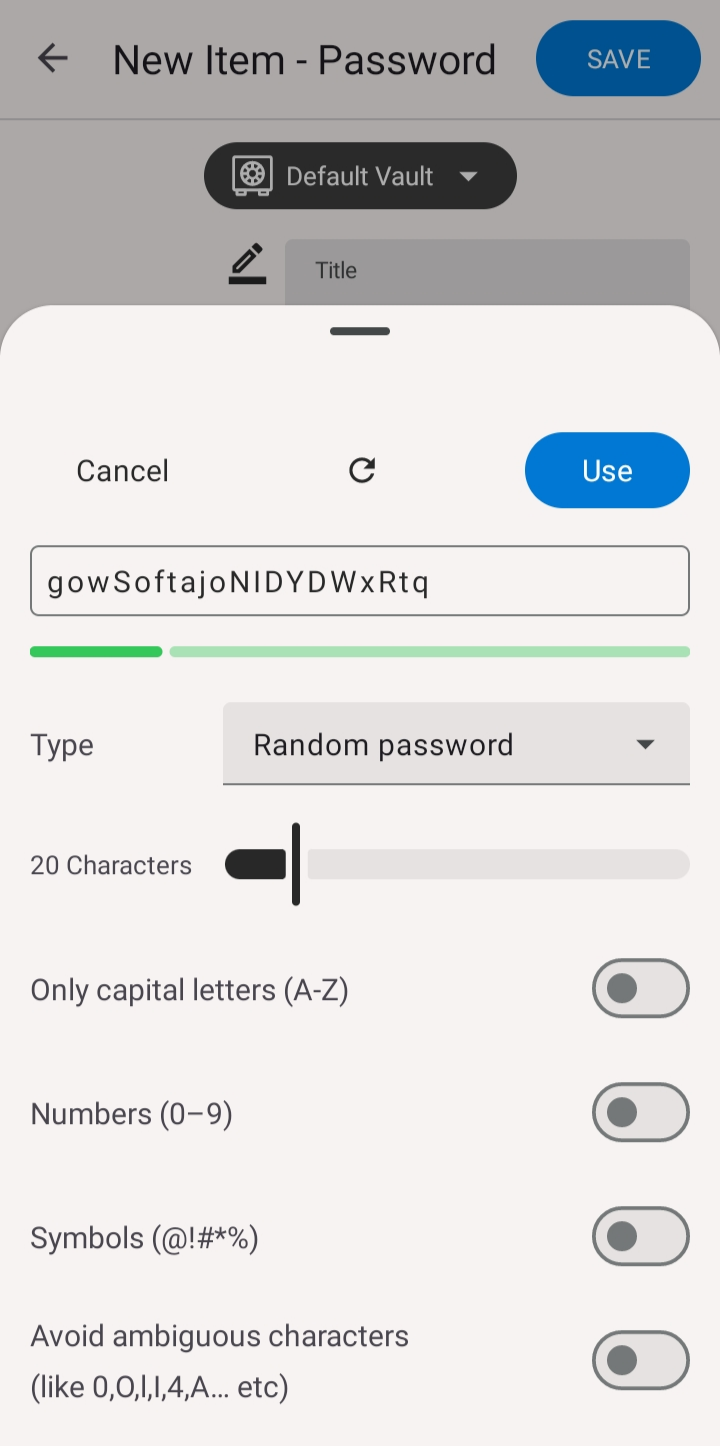
1. Choose a mode
The generator has two modes. Pick the one that fits what you are creating:
- keyRandom password mixes letters, numbers, and symbols. Use this for almost every account.
- dnsPIN code generates numbers only, for places that ask for a numeric code.
2. Set the options
For a Random password, choose a length anywhere from 8 to 100 characters, then turn on the character types you want to include:
- checkCapital letters (A-Z)
- checkNumbers (0-9)
- checkSymbols (@!#*%)
- visibility_offAvoid ambiguous characters leaves out look-alikes such as 0, O, l, and I.
For a PIN code, the only setting is length, which you can set from 3 to 18 digits.
3. Check the strength, then use it
A strength bar rates the result as you adjust the options, so you can see at a glance how strong the password is. Not happy with it? Tap refresh to generate a fresh one with the same settings. When you have one you like, tap Use to drop it straight into the password field.
Tips for the strongest password
For maximum strength, enable every character type and choose a longer length. Since GBpass remembers the password for you and can fill it in automatically, there is no reason to keep it short.
warning If you will ever have to type a password by hand, turn on Avoid ambiguous characters so you do not confuse a zero with the letter O or a lowercase l with a capital I.
Still need a hand?
Browse the Help Center FAQ or contact our support team.