

Unlock with biometrics & Auto Lock
Turn on Fingerprint or Face ID unlock and choose how quickly GBpass locks itself when you step away.
After you've signed in on a device, GBpass locks itself to keep your vault safe. You can unlock it quickly with your fingerprint or face, and control how soon it re-locks when you're not using it.
Unlock with biometrics
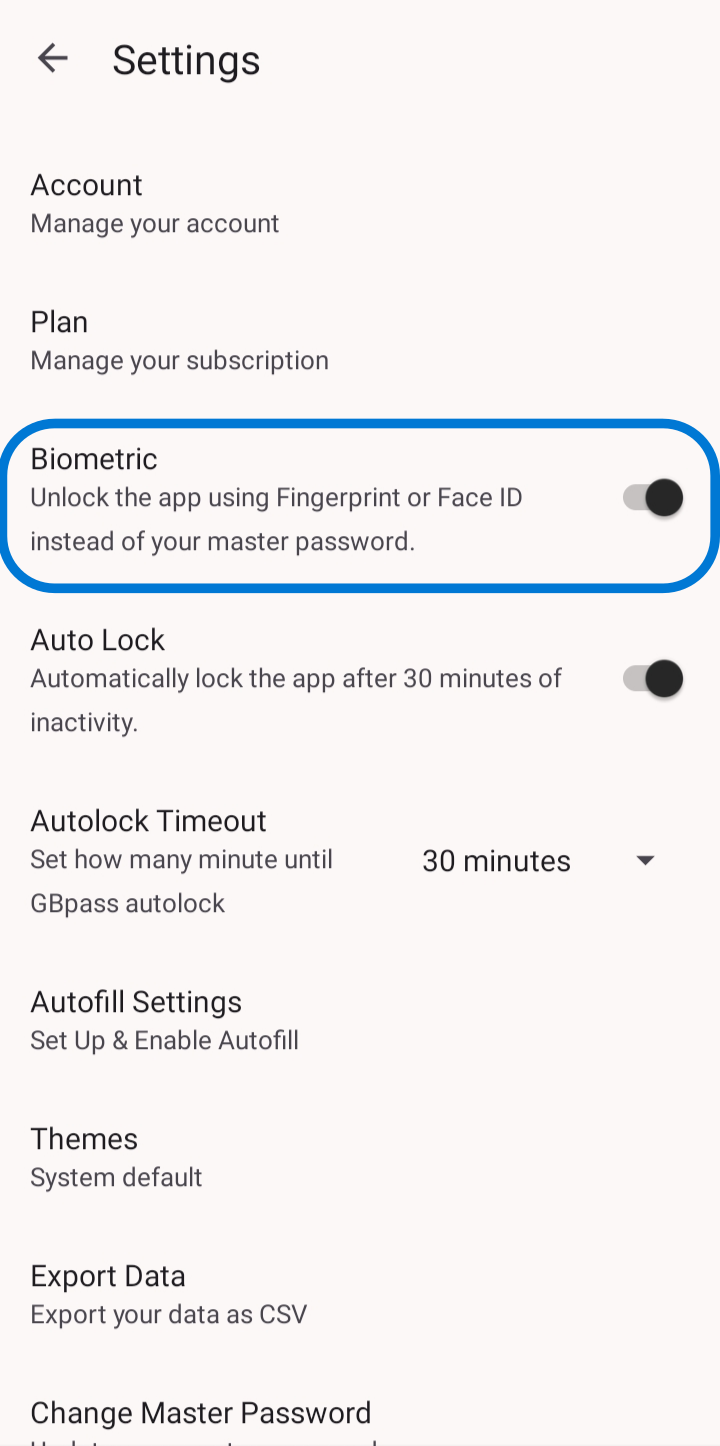
Turn on biometric unlock to open GBpass with Fingerprint or Face ID instead of typing your Master Password each time. Go to Settings → Biometric and switch it on.
fingerprint Biometrics are a convenient shortcut, not a replacement for your Master Password. Keep your Master Password memorised. You'll still need it after a restart and in some security situations.
Set your Auto Lock timeout
Auto Lock decides how quickly GBpass locks after you leave it. Open Settings → Auto Lock and choose the timing that fits you:
- boltImmediately locks as soon as you leave the app (most secure).
- lock5, 10, 15, or 30 minutes: the app stays unlocked for a while for convenience.
A shorter timeout is safer, especially on a shared or frequently-carried device. If you're unsure, Immediately is the safest choice.
Why locking matters
Locking ensures that if your phone is lost, stolen, or left unattended, no one can browse your vault without your biometrics or Master Password. Combined with GBpass's end-to-end encryption, it keeps your passwords yours alone.
Related articles
Still need a hand?
Browse the Help Center FAQ or contact our support team.