
Add your first login
Save a website username and password as a Password item, with a generated password, notes, tags, and attachments.
The most common thing you will save in GBpass is a website login: the username, password, and web address for an account you already have. GBpass stores each of these as a Password item, so you never have to remember or retype it again. This guide walks you through adding your very first one.
Before you begin
Adding an item takes only a few taps, but make sure these things are in place first:
- lockYou are signed in. If you have not set up GBpass yet, start with Create your account, or Sign in if you already have one.
- grid_viewA vault is selected. If none is selected the app shows Please select a vault. See Organize your vault.
- verifiedYou have room left in your plan's storage. Passwords take up very little space, so this only matters if you attach large files. See Pricing for what each plan includes.
1. Tap the + button
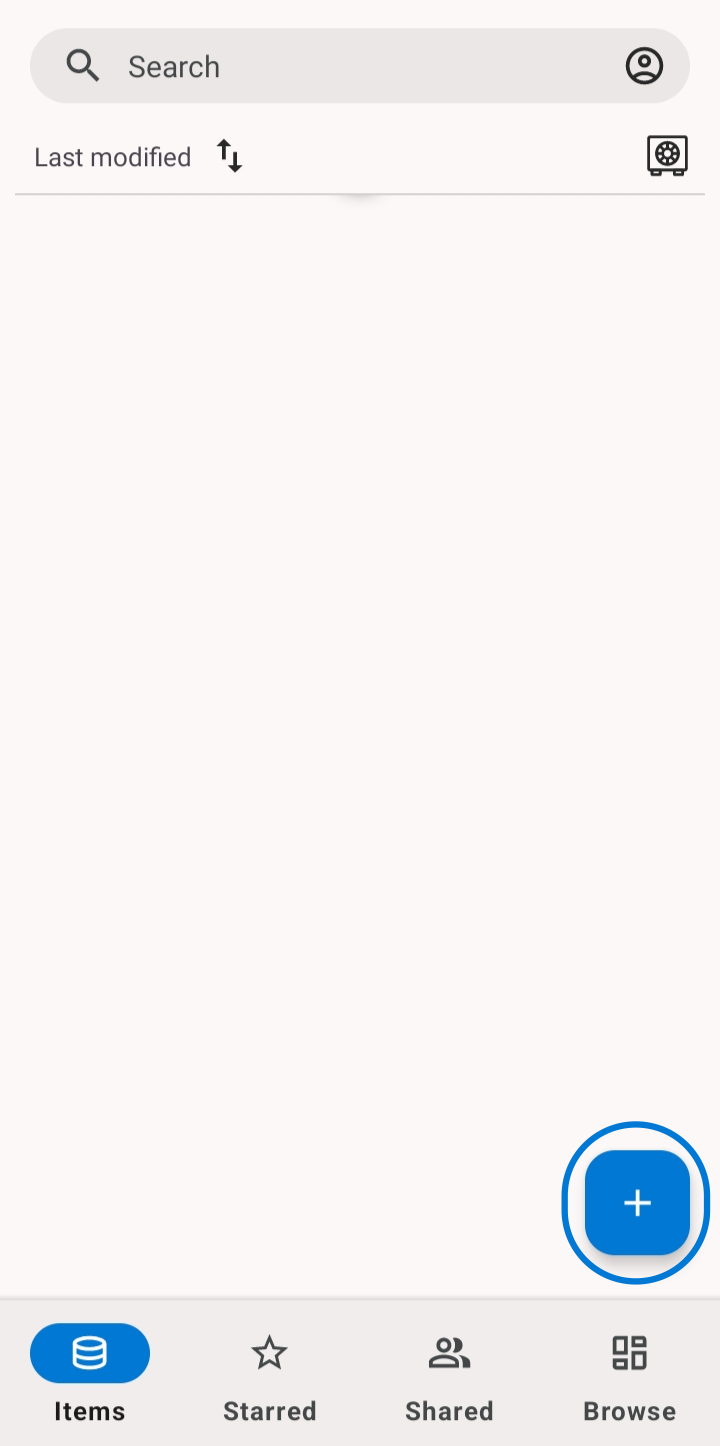
On the Items tab, tap the round + button in the bottom-right corner. A sheet slides up showing the different item types you can create.
2. Choose Password
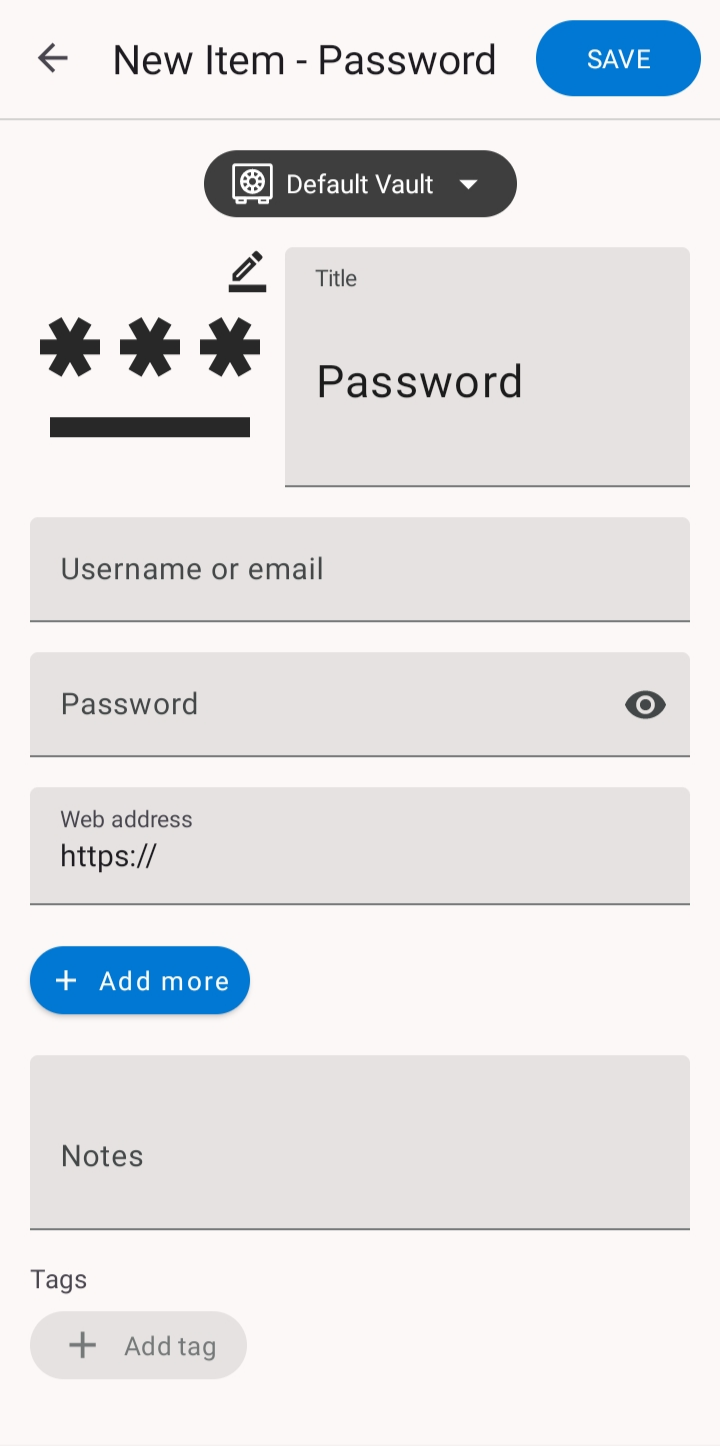
From the sheet, tap Password. This opens a blank form built for website and app logins. GBpass supports several item types, but Password is the right choice for a normal account.
3. Fill in the details
Enter the core fields for the account you want to save:
- mailUsername or email: how you log in to the site.
- keyPassword: the current password for the account.
- linkWeb address: the site's URL, which helps GBpass match the login later.
4. Generate a strong password
Creating a new account, or updating a weak one? Tap the generate action on the Password field and GBpass will build a long, random password for you and drop it straight into the field. Learn how to fine-tune length and character types in Password generator.
warning If you generate a new password here, remember to change it on the website too. GBpass stores what you type. It does not update the account for you.
5. Add extra details (optional)
You can enrich the item with more context before saving:
- note_altNotes for security questions, account numbers, or reminders.
- favoriteTags are labels that make items easier to find later.
- imageFile attachments (see File attachments).
- note_altAdd more lets you create your own extra fields for anything else.
6. Save it
Tap Save. The new login appears at the top of your Items list right away.
Because GBpass keeps your vault in sync, the item is also available on your other signed-in devices. See How sync works for the details.
Related articles
Still need a hand?
Browse the Help Center FAQ or contact our support team.