
Attach & preview files
Attach PDFs, images, and Office documents to an item and preview them securely inside GBpass.
Some logins and notes are more useful with a document alongside them, like a passport scan, a Wi-Fi setup PDF, or a photo of a warranty card. GBpass lets you attach files to any item and preview many of them without ever leaving the app. Everything you attach is encrypted on your device, so your files stay just as private as the rest of your Vault.
1. Attach a file to an item
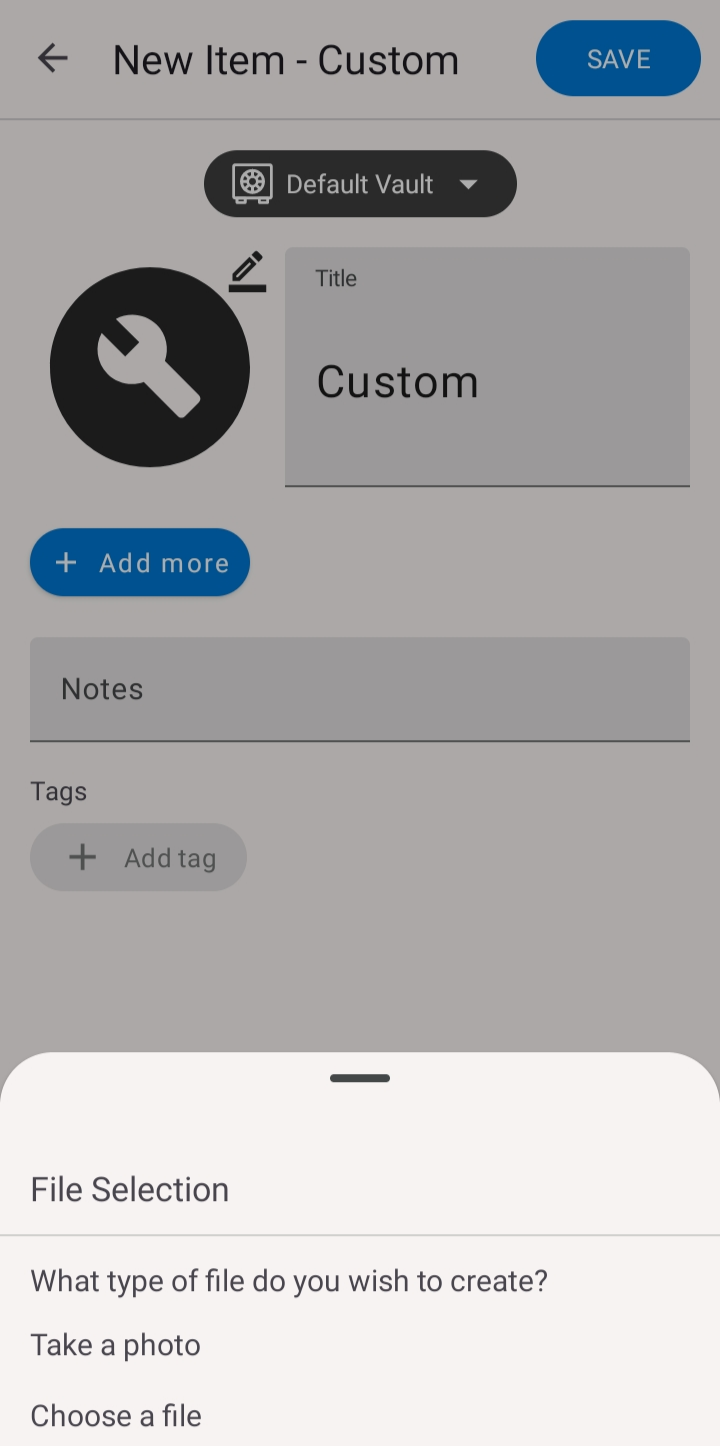
Open the item you want to add a file to, then tap Add attachment. GBpass gives you two ways to add the file:
- imageTap Take a photo to capture a document or card on the spot with your camera.
- downloadTap Choose a file to pick something you already have saved on your device.
Once you select a file it is attached to that item right away. Remember to save the item if you are in edit mode so the attachment sticks.
2. Supported file types
GBpass accepts a wide range of everyday formats, so most of what you need to keep with an item will just work:
- picture_as_pdfPDF documents
- imageImages (JPEG and PNG)
- draftMicrosoft Office files (Word, Excel, and PowerPoint)
- headphonesAudio and video files
3. Size limits
To keep your Vault fast to sync and unlock, attachments have size limits:
- checkUp to 100 MB per file.
- checkYour files also count toward your plan's total storage: 250 MB on Free, 20 GB on Personal. See Pricing.
warning If a file is rejected for its size, try a smaller version or a compressed copy. If you are running out of room, upgrading to Personal raises your total storage to 20 GB.
4. Preview an attachment
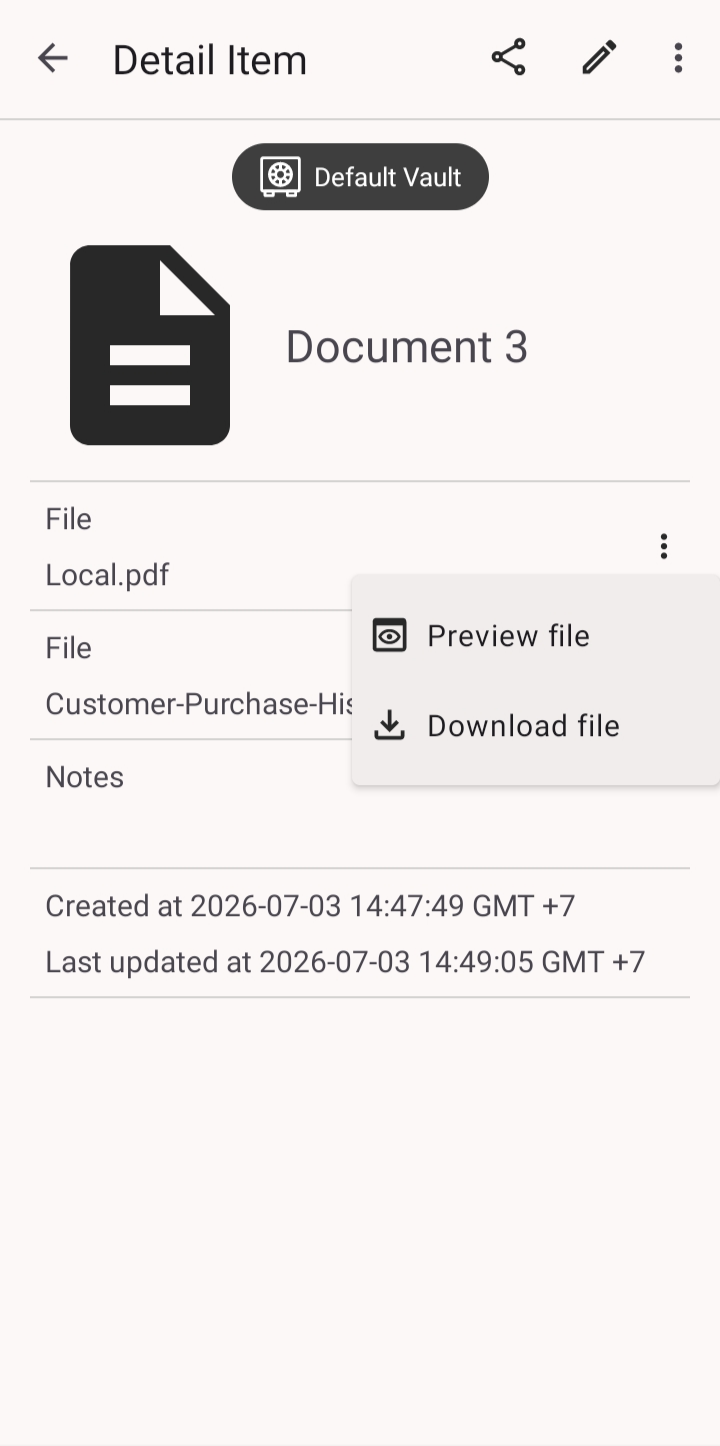
Tap an attachment to open it right inside GBpass. You can preview PDFs, images, and Office documents without handing the file off to another app.
- note_altLarge spreadsheets may show only the first rows to keep the preview quick.
- lockPassword-protected files ask for their password before they open.
- downloadPrefer to open a file elsewhere? You can download any attachment to your device.
5. How attachments stay private
Attachments get the same protection as your passwords and notes. Every file is encrypted on your device before it is stored or synced, so no one else can read it, including GBpass. Learn more in the security overview.
Related articles
Still need a hand?
Browse the Help Center FAQ or contact our support team.