

App settings & themes
Choose a Light, Dark, or System theme and adjust biometric unlock, Auto Lock, and other preferences.
GBpass works great out of the box, but a few quick tweaks make it feel like your own. From Settings you can switch themes, turn on biometric unlock, decide how soon your Vault locks, and reach handy shortcuts like Autofill and legal information. Here's how to find everything and what each option does.
Open Settings
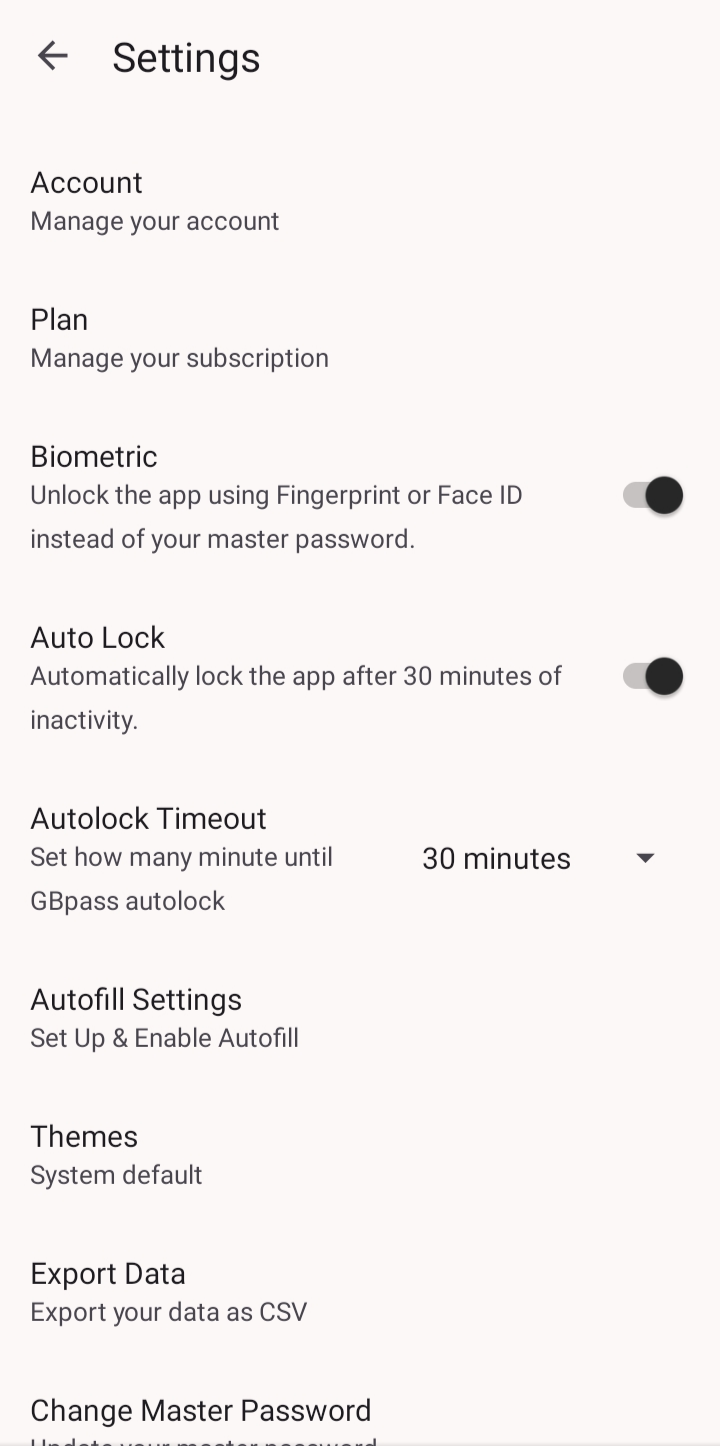
Tap Settings to open your preferences. Everything on this screen is grouped so you can scan it quickly and change only what you need.
Choose a theme
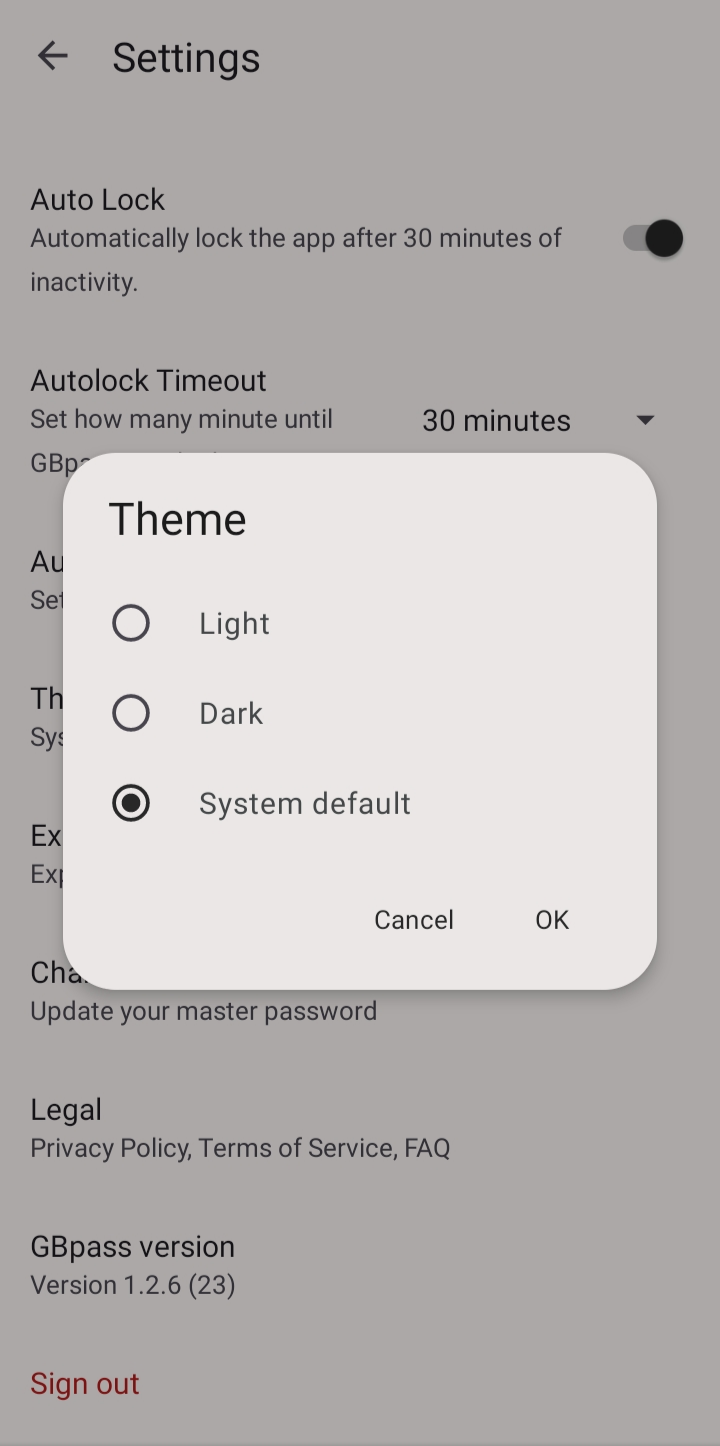
Under Theme, pick the look that suits you best. Your choice takes effect right away, so try each one and keep your favorite.
- visibilityLight is a bright interface that's easy to read in daylight.
- visibility_offDark is a low-glare interface that's gentler at night.
- smartphoneSystem default lets GBpass follow your phone's light or dark setting automatically.
Biometric unlock
Turn on Biometric unlock to open your Vault with your fingerprint or face instead of typing your Master Password every time. It's fast, and your Master Password is still required as a fallback and after certain events.
For the full walkthrough, see Unlock & Auto Lock.
Auto Lock
Use Auto Lock to control how soon GBpass locks itself when you're not using it. A shorter time is more secure; a longer time is more convenient. The default is 30 minutes.
- lockImmediately locks the moment you leave the app.
- lockChoose 5, 10, 15, or 30 minutes to lock after that much idle time.
warning On a shared or easily lost phone, choose a shorter Auto Lock time so your Vault never stays open unattended.
Learn more in Unlock & Auto Lock.
More on the Settings screen
A few extra options round out the screen so you don't have to hunt for them elsewhere.
- verifiedPlan: see whether you are on Free or Personal, start the 30-day free trial, and manage billing. See Manage your plan & billing.
- extensionAutofill Settings lets you enable and manage autofill so GBpass can fill logins in your other apps. See Set up autofill.
- draftLegal has quick links to the Privacy Policy, Terms of Service, and FAQ.
- note_altApp version shows the version number you're running, which is useful when contacting support.
- keySign out ends your session on this device. You'll need your Secret Key and Master Password to sign back in.
Before you sign out, make sure you still have your Recovery Kit so signing back in is smooth. If you ever get stuck, our team is happy to help from the Help Center.
Related articles
Still need a hand?
Browse the Help Center FAQ or contact our support team.