

Item types explained
Store logins, secure notes, cards, identities, documents, and fully custom items, plus passkeys saved from websites.
GBpass stores more than just passwords. Each thing you save is an Item, and every item has a type that shapes the fields you see. Picking the right type keeps your Vault tidy and makes the details you need easy to find later. This guide walks through each type and when to use it.
Choosing a type
On the Items tab, tap the + button to open the type chooser. There are six types you create directly, plus one special type (Passkey) that is saved for you automatically.
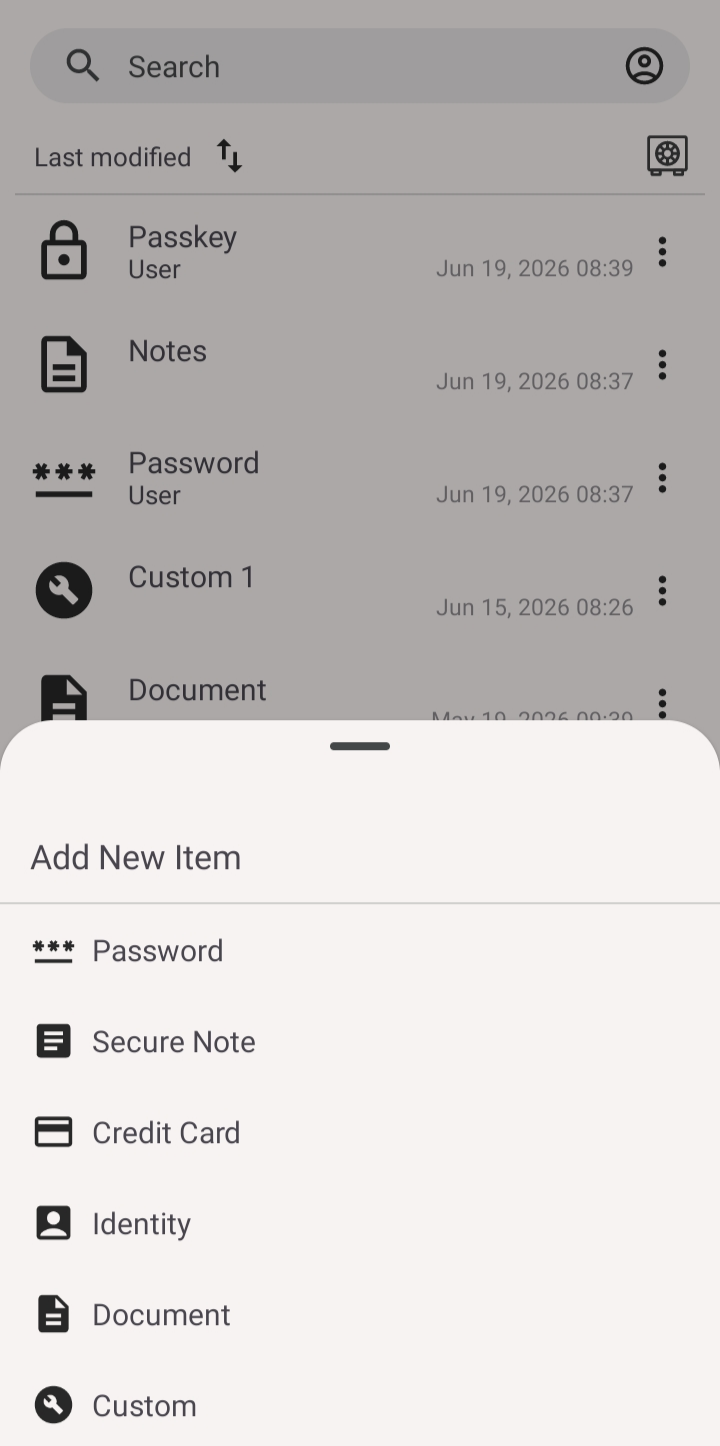
- keyPassword is for logins. It holds a username or email, a password, and a web address. See Add a login for the full walkthrough.
- note_altSecure Note: a title plus a note body that supports Markdown formatting for headings, lists, and emphasis.
- account_balanceCredit Card: cardholder name, card number, card type, verification number (CVV), expiry, issuing bank, PIN, and limits.
- groupIdentity covers personal details such as name, birth date, address, and phone numbers.
- picture_as_pdfDocument is built around files. Give it a title and notes, then attach the file itself. See File attachments.
- grid_viewCustom starts empty so you can build your own layout.
Password, Secure Note, and Document
The Password type is the one you will reach for most often. It keeps your sign-in details together and works hand in hand with autofill, so you can log in without typing. Reach for a Secure Note when you just need free-form text (Wi-Fi passwords, software license keys, or step-by-step instructions), and use the Markdown body to keep long notes readable. Choose Document when the important part is a file, such as a scanned passport or an insurance PDF; the title and notes simply describe what the attachment is.
Credit Card and Identity
These two types come with ready-made fields for the kind of information you fill in over and over. A Credit Card item keeps the number, CVV, and expiry in one encrypted place so checkout is quick and safe. An Identity item gathers your name, birth date, address, and phone numbers, which is handy for forms and profiles.
Custom items
When none of the presets fit, pick Custom. It begins as a blank item, and you shape it with the Add more button to insert exactly the fields you need. Available field kinds include Text, Url, Email, Address, Date, Month/Year, Password, Phone, and File.
bolt The type you choose is only a starting point. Every item, no matter the type, also supports notes, tags, attachments, and extra Add more fields, so you are never boxed in.
Passkeys are different
Passkey is a seventh item type, but you do not create it from the + menu. Passkeys are saved automatically when you register one on a supported website, and GBpass stores them alongside your other items. To learn how they work, read Passkeys overview.
Related articles
Still need a hand?
Browse the Help Center FAQ or contact our support team.