

Change your Master Password
Update your Master Password and save the new Recovery Kit that GBpass generates for you.
Your Master Password is the key that unlocks everything in GBpass, so it is worth changing if you suspect someone has seen it, if you have reused it elsewhere, or if you simply want a stronger one. This guide walks you through changing it from the app, saving the new Recovery Kit that GBpass creates for you, and signing back in on your devices.
Before you start, make sure you can enter your current Master Password. GBpass cannot reset it for you, so you can only change it from an account that is already signed in and unlocked. If you are new to how these keys work, see Master Password and Secret Key.
1. Open Change Master Password
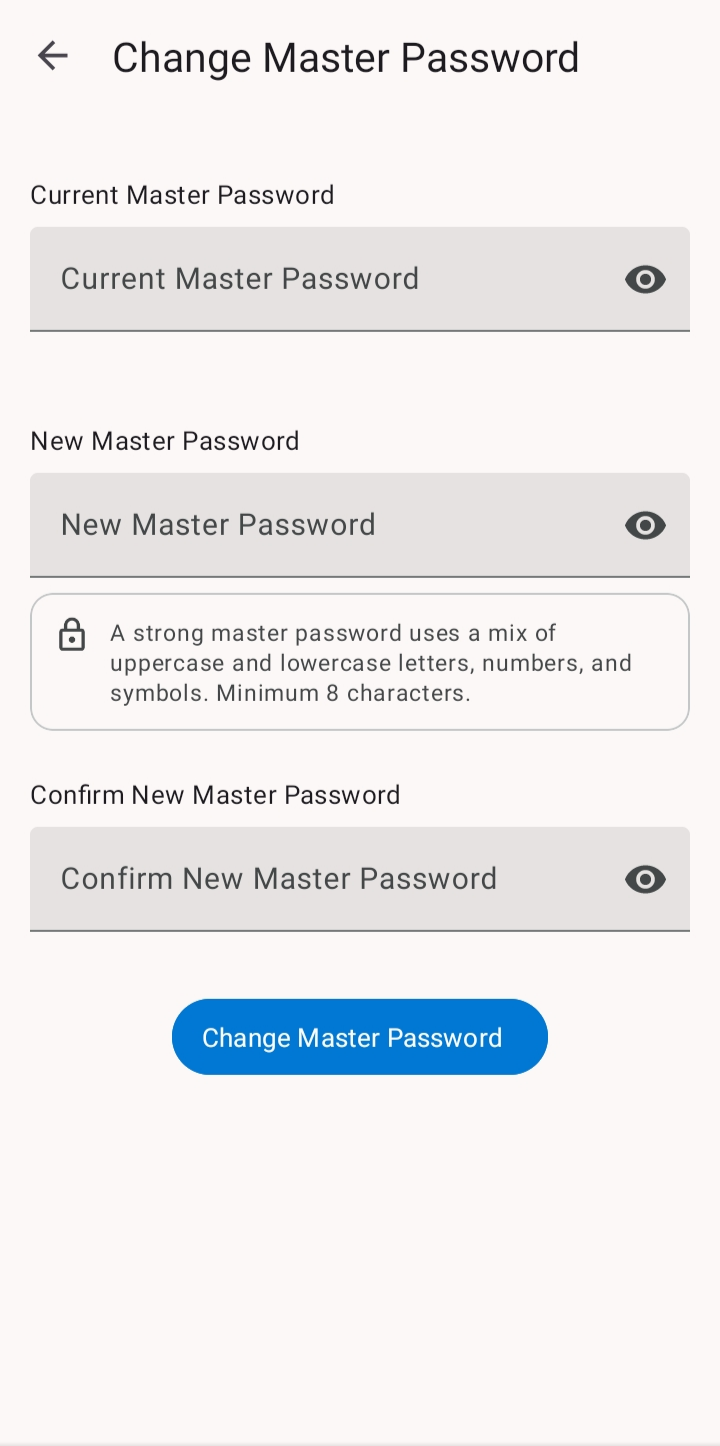
Open GBpass, go to Settings, and tap Change Master Password. Unlock your vault first if you have not already.
2. Enter your current and new password
Type your current Master Password to confirm it is really you, then enter your new Master Password twice so GBpass can check they match. Your new password must meet these requirements:
- checkAt least 8 characters long.
- checkA mix of upper- and lower-case letters.
- checkAt least one number.
- checkAt least one symbol.
Choose something long and memorable that you have never used anywhere else. A short phrase you can picture works better than a single word. Once the fields are filled in correctly, confirm the change.
3. Save your new Recovery Kit
Because your Master Password is part of how your vault is protected, changing it makes your previous Recovery Kit obsolete. GBpass generates a brand-new Recovery Kit right away. Download it and store it somewhere safe, then delete or destroy the old one so you are never tempted to use it.
warning Your old Recovery Kit no longer works after you change your Master Password. Save the new one before you continue, or you could lose access to your vault.
4. Sign back in on your devices
After the change, GBpass signs you out so the new password takes effect. Sign back in with your new Master Password, and repeat this on any other device where you use GBpass. Your Secret Key stays the same, so you only need to update the Master Password itself.
Keep in mind
encrypted GBpass can never see or reset your Master Password for you. It is combined with your Secret Key to protect your vault, so only you can unlock it. Learn more about this design in the Security overview.
Related articles
Still need a hand?
Browse the Help Center FAQ or contact our support team.