

Export your data
Export your vault to a CSV file after confirming your Master Password.
Exporting gives you a copy of everything in your Vault as a single file. It is handy when you want a personal backup, need to move information into another tool, or simply want to review all your items at once. GBpass exports to CSV, and the whole process takes just a few taps.
What gets exported
The export includes the full details of every item in your Vault, so nothing is left behind. Each row in the file captures:
- grid_viewThe vault and item type (login, card, identity, note, and so on).
- keyThe name, username, password, and URL.
- account_balanceCard and identity fields for those item types.
- note_altNotes, tags, and any custom fields you added.
1. Open Export Data
Go to Settings and tap Export Data. This screen explains what will be included and lets you start the export.
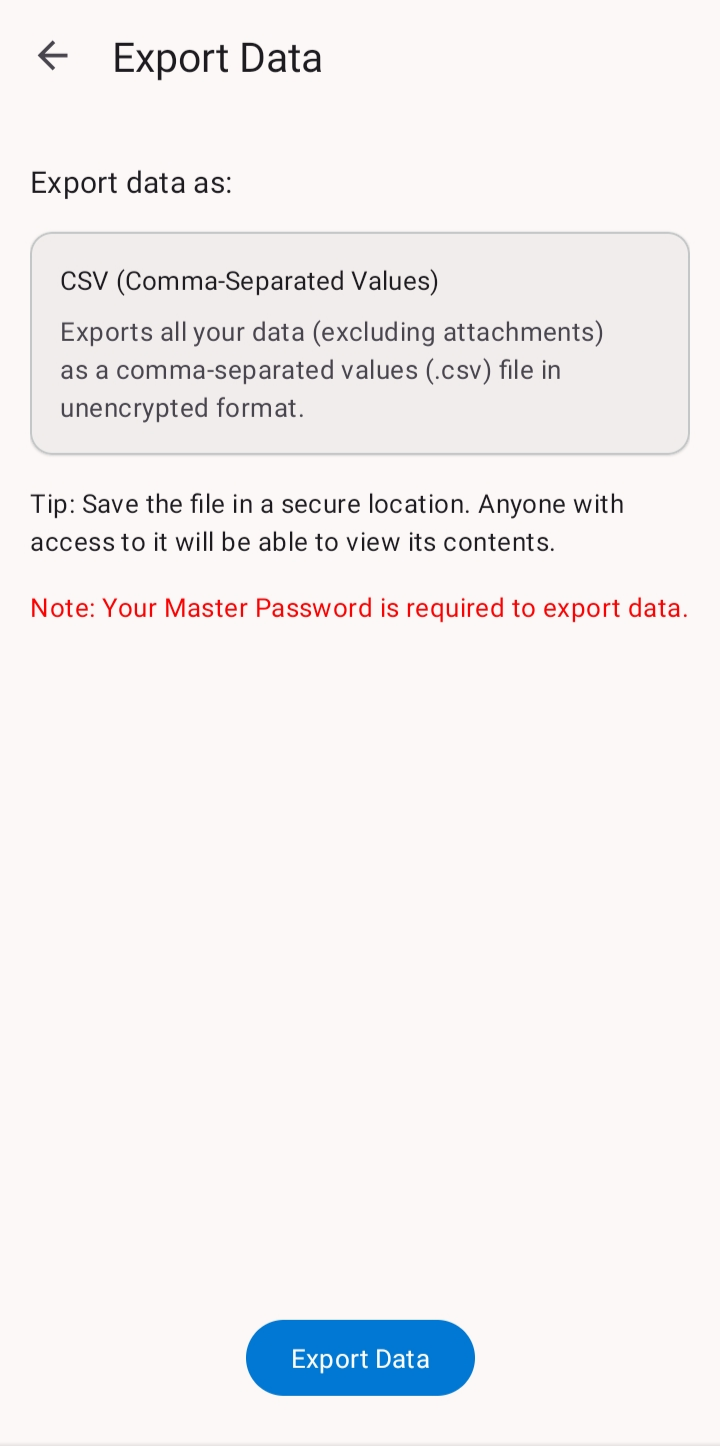
2. Confirm with your Master Password
Because an export reveals every password in plain text, GBpass asks you to enter your Master Password first. This confirms it is really you and not someone who picked up your unlocked phone.
3. Choose where to save the file
GBpass creates a CSV file named something like gbpass_export_<date>.csv and opens your device's file picker. Pick a location, and your export is saved there. CSV is the only export format GBpass offers, and it opens in any spreadsheet app.
Keep your export safe
The exported CSV is a convenience for backups and migration, but it comes with a trade-off: unlike your Vault, the file is not protected.
warning The exported CSV is not encrypted. Anyone who opens the file can read your passwords in plain text. Store it somewhere safe, such as encrypted storage you control, and delete it as soon as you are done.
To learn how your data stays protected inside the app, see how sync works and the security overview.
Related articles
Still need a hand?
Browse the Help Center FAQ or contact our support team.