

Sign in to GBpass
Sign in on a new device with your email, Secret Key, and Master Password, then let your vault sync.
Signing in on a new phone or tablet takes three steps. Have your Recovery Kit and your Master Password ready. You'll need the Secret Key from the kit.
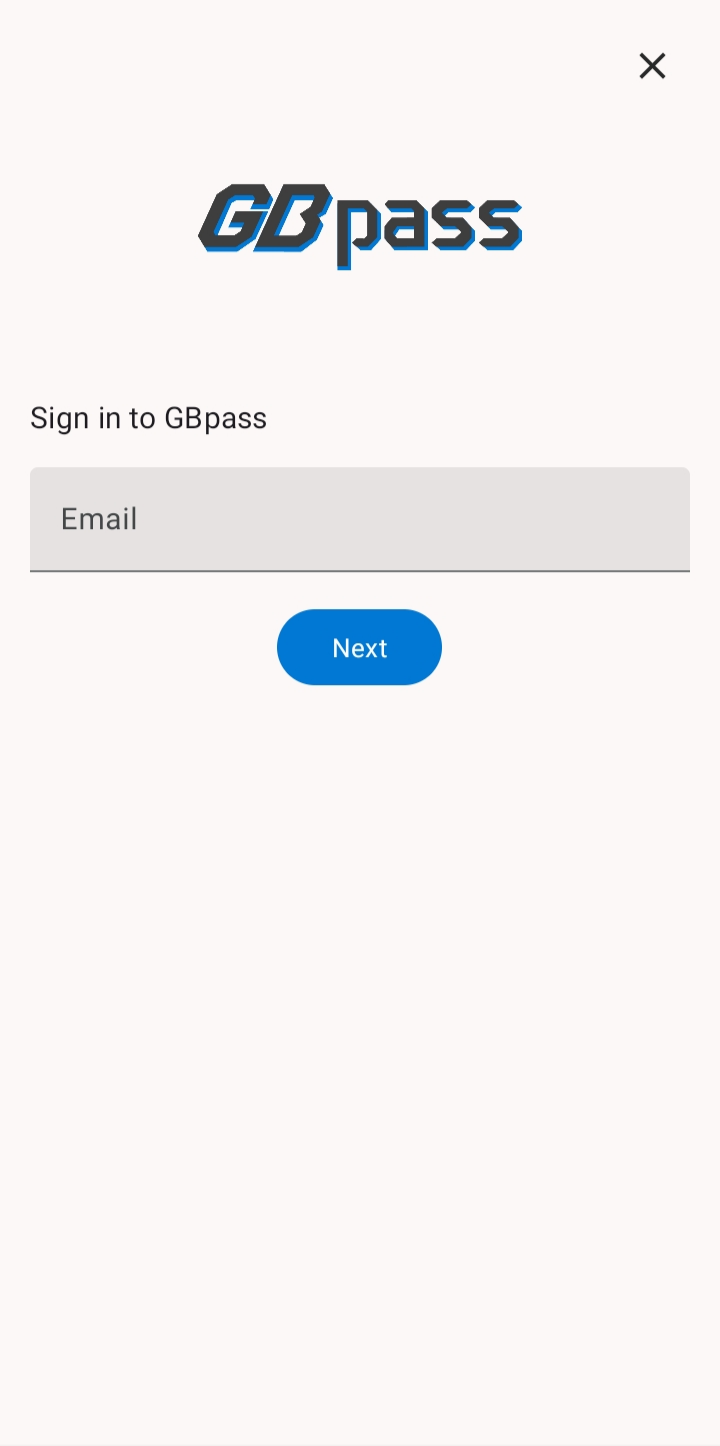
1. Enter your email
Open GBpass and choose to sign in. Enter the email address you used to create your account and tap Next.
2. Enter your Secret Key
Enter your 34-character Secret Key from your Recovery Kit. You can type it exactly as printed.
3. Enter your Master Password
Finally, enter your Master Password. GBpass verifies it without ever sending it to our servers, then signs you in and syncs your vault. You'll briefly see a “Syncing your vault…” screen while your items download and decrypt on the device.
After the first sign-in
Once you're signed in on a device, you won't repeat all three steps every time. Instead GBpass shows a lock screen where you unlock with your Master Password, or with biometrics if you turn them on. See Unlock with biometrics & Auto Lock.
Can't sign in?
- keyLost your Secret Key? It's in your Recovery Kit. If you're already signed in on another device, find it under Settings → Account → Sign In & Recovery Info.
- lockForgot your Master Password? For your security it can't be reset. Read the FAQ to understand your options.
Related articles
Still need a hand?
Browse the Help Center FAQ or contact our support team.