

Use autofill to sign in
Tap the GBpass suggestion on any login screen to fill your username and password automatically.
Once autofill is switched on, GBpass can sign you in to apps and websites without any typing. Tap a login field, pick the matching item, and your username and password drop straight in. This guide walks through the everyday flow and what to do if a suggestion does not appear.
If you have not enabled autofill yet, follow Set up autofill first, then come back here.
1. Tap a login field
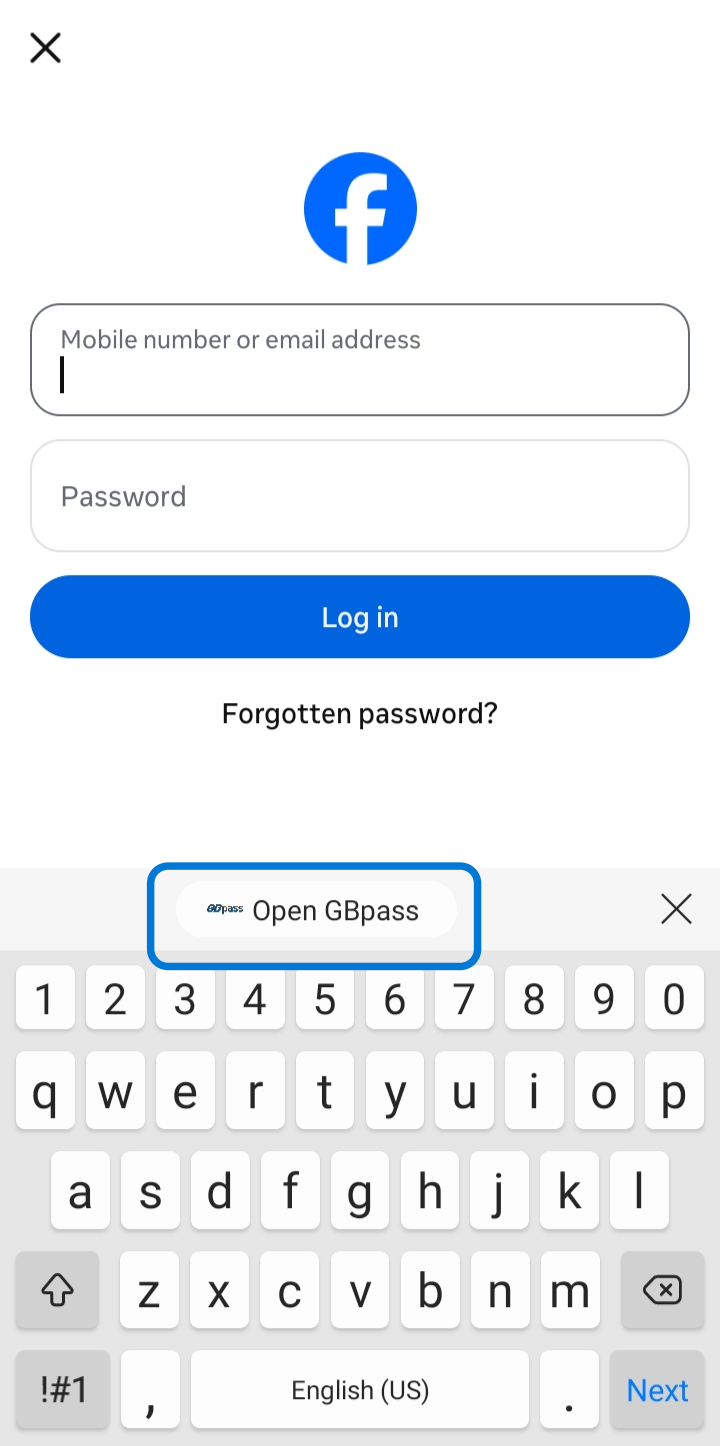
Open any app or website that asks you to sign in and tap the username or password field. A GBpass suggestion labeled Open GBpass appears just above the keyboard.
2. Pick the matching item
Tap Open GBpass to see the logins that match the current app or site. If your Vault is locked, unlock it first, then choose the item you want to use.
- keyGBpass shows items whose saved address matches the login screen at the top of the list.
- zoom_inIf several logins could match, tap the one you want, or search by name to narrow it down.
- fingerprintYou may be asked to confirm with your fingerprint or device unlock before the fill happens.
3. Let GBpass fill and sign in
GBpass fills the username and password fields for you. Review the entries and tap the app's own sign-in button to finish. Your credentials never touch the clipboard, so there is nothing to clear afterward.
When no suggestion appears
Some apps hide their login fields from the standard autofill system, so the Open GBpass prompt may not show up. When that happens, turn on the Accessibility Autofill fallback, which lets GBpass fill those stubborn screens too.
warning No prompt on a login screen? Enable the Accessibility Autofill fallback in Set up autofill and try the field again.
Faster ways to fill
For screens where autofill still cannot help, GBpass gives you a couple of manual shortcuts. See Quick tools for the Quick Settings tile and how copying from an item works so you can paste a username or password by hand.
- boltOpen the Quick Settings tile to jump into GBpass without leaving the app you are in.
- lockCopied credentials are handled carefully, so you never leave a password sitting on the clipboard.
Related articles
Still need a hand?
Browse the Help Center FAQ or contact our support team.